

Tabs
Turbo adds closing, restore, open, and layout enhancements for tabs. Most toggles live under Settings → Tabs and bookmarks (Tabs / Bookmarks / Opening behavior). Available on Windows and macOS.
Features with their own full guides:
- Vertical tabs — side layout (left / right), tab layout toggle; Expand on hover option; click-to-mute disabled when fully collapsed
- Small account tabs — persistent identities in a normal window (cookies remember sign-in); create / open / delete from the app menu
Close tabs
In Settings → Tabs and bookmarks you can toggle separately:
| Option | Behavior |
|---|---|
| Double-click to close tab | Double-click a tab to close it — faster than clicking × |
| Right-click to close tab | Right-click a tab to close it; hold Shift to still open the context menu |
Works in both horizontal and vertical tab layouts.
Hide tab close buttons
Turn on Hide tab close buttons in Settings → Tabs and bookmarks (off by default). Tabs no longer show ×; you can still close them with double-click / right-click, shortcuts, and other actions.
Entering browser fullscreen (system F11, not Immersive mode), you can choose Don't show again on the exit hint, or turn off Show how to exit when entering browser fullscreen in Settings → Appearance. Site-requested fullscreen still shows a hint.
Close tabs to the left
The tab context menu adds Close tabs to the left between Close other tabs and Close tabs to the right. In vertical tabs the item is labeled Close tabs above. Pinned tabs are not closed.
Activate tab on hover
In Settings → Tabs and bookmarks, turn on Activate tab on hover (off by default). When enabled, hovering a tab for a while activates it; Hover delay is adjustable from 100–1000ms.
Dragging files onto tabs still uses the existing spring-loading switch and is unaffected. Works in both horizontal and vertical tab layouts.
Scroll tab strip to switch tabs
Toggle Scroll on the tab strip to switch tabs in Settings → Tabs and bookmarks (on by default). When on, the mouse wheel on the horizontal tab strip switches adjacent tabs and wraps from the first to the last (same as Ctrl+Tab); vertical tabs do not support wheel switching (the wheel scrolls the list).
With the scrollable tab strip on, the wheel scrolls the strip sideways first; hold Ctrl and scroll to still switch adjacent tabs.
Scrollable tab strip
Turn on Use a scrollable tab strip in Settings → Tabs and bookmarks (off by default). When on, tabs keep a readable width and you scroll sideways instead of shrinking every tab.
You can also:
| Option | Notes |
|---|---|
| Minimum tab width | Compact / Medium / Large / Full width (default Large) |
| Show scroll buttons on the tab strip | Left/right buttons at the ends (on by default) |
When there are few tabs and nothing overflows, + still sits after the last tab. Horizontal tab strip only.
Tab shape
Settings → Tabs and bookmarks → choose tab shape: rounded / square (rounded by default). Applies to horizontal and vertical tab strips. Square also squares the toolbar and content top corners, vertical pinned-tab outlines, and the group and tab-search buttons.
Close last tab
In Settings → Tabs and bookmarks, choose what happens when you close the last tab in a window (default: Open a new tab first):
| Option | Behavior |
|---|---|
| Close the browser | Closing the last tab closes the window |
| Open a new tab first | Closing the last non-NTP tab replaces it with a new tab; closing that new tab then closes the window |
| Always open a new tab | Closing the last tab always replaces it with a new tab; the window stays open |
Applies to normal windows. Closing the whole window (including closing all tabs at once) is unchanged. Replacing the last tab with a new tab page focuses the address bar so you can type a URL immediately.
New tab position
Settings → Tabs and bookmarks → Open behavior → New tab position: First / Before current / After current / Last / Default (Default is selected by default).
Covers Ctrl+T, tab-strip “+”, bookmarks, address bar, home, restore tab, and similar; Webpage link position is separate. Works for horizontal and vertical tab strips.
| Option | Behavior |
|---|---|
| Default | New tabs still insert at the end; a single restore returns to where the tab was closed |
| First / Last / Before current / After current | New tabs and single restores both use the fixed position |
When the current tab is in a group, a new tab inserted before or after it stays in that group. Applies to Ctrl+T and tabs opened from bookmarks.
How entered URLs open
Settings → Tabs and bookmarks → How entered URLs open — three choices (default: Current tab):
| Option | Behavior |
|---|---|
| Current tab | Address-bar Enter replaces the current page |
| Foreground tab | Opens in a new foreground tab |
| Background tab | Opens in a new background tab |
If the current page is an NTP or blank page, it still opens in the current tab. Middle-click, Ctrl/Cmd+click, and other existing modifiers are unchanged.
Webpage link open position and method
Under Settings → Tabs and bookmarks → Opening behavior:
| Option | What it does |
|---|---|
| Webpage link open position | Where in the tab strip a clicked webpage link is inserted (separate from New tab position); Default matches Chromium (foreground after current, background opener chain) |
| Webpage link open method | Current tab / foreground tab / background tab, plus Default (background tab) |
Left-click, Ctrl, middle-click, and target=_blank all follow open method. Form POST is not rewritten, so submit data is kept. Open popups in tabs (off by default) turns allowed popups, and ones opened from the block list, into tabs; foreground / background follows Webpage link open method (including default-background; Current tab still opens a foreground tab); blocked popups stay blocked. With After current tab, successive background links stack newest-first beside the current tab. Third-party NTP extension scenarios also support Webpage link open method (e.g. new background tab).
When webpage links open in a new tab, left-click forum pagination stays on the current page (Ctrl / middle-click unchanged). Opening an external link reuses the current empty NTP / blank tab when applicable, so you do not leave an extra empty tab.
Middle-click on tabs
Settings → Tabs and bookmarks → When middle-clicking a tab (default: Close tab):
| Option | Behavior |
|---|---|
| Close tab | Same as middle-click close |
| No action | Middle-click does nothing |
| Unload tab | Free memory; reload when you switch back |
| Kill tab | Force-end the tab renderer |
| Reload | Refresh the tab |
| Show menu | Open the tab context menu |
| Pin / Unpin | Toggle pinned state |
| Duplicate tab | Duplicate into a new tab |
Works in horizontal and vertical tab layouts.
You can also configure middle-click on empty tab-strip area (between tabs or on blank strip space, not on a tab) (default: No action): new tab, small account, restore last closed tab, open clipboard URL, and more.
Activate after closing current tab
Settings → Tabs and bookmarks → Activate after closing current tab (default: Related tab, same as Chromium):
| Option | Behavior |
|---|---|
| Related tab | Prefer a tab related to the one you just closed |
| Right tab | Activate the tab to the right |
| Left tab | Activate the tab to the left |
| Last used tab | Activate the most recently used tab |
Ordinary closes follow this setting. Mouse gestures can still map Close current tab (activate left / right) independently.
Confirm before closing multi-tab windows
Closing a normal window that has multiple tabs shows a confirmation dialog; supports “Don’t ask again.” Related options are under Settings → Tabs and bookmarks. Closing from the taskbar or while in the background activates the window first so the dialog is visible.
Fade idle tabs
Toggle Fade idle tabs under Settings → Performance (on by default). When on, background idle tabs sleep first, then the tab and favicon fade so sleeping pages are easy to spot; switching back restores them.
Sleep timeout follows the Memory Saver level (approx.):
| Memory Saver | Approx. timeout |
|---|---|
| Conservative | 15 minutes |
| Balanced | 5 minutes |
| Maximum | 2 minutes |
Pages using the camera or microphone (calls, meetings) are less likely to be slept by mistake. On Memory Saver Maximum, background tabs from startup or session restore defer loading until you switch to them; unloaded tabs use the same fade when this option is on.
Tab mute
Click 🔊 on a tab that is playing audio to mute / unmute that tab (available by default), without using in-page controls.
Closed-tab restore
The toolbar Restore pages button brings back tabs you closed by mistake:
- Left-click — restore the most recently closed tab; after restoring a page in the current window, an empty new tab with no history is closed (not when only focusing an already-open group, or for small-account / split-view tabs), so you don't leave an extra NTP
- Right-click — recent-closed items grouped by window / group / split view (up to 20 entries, NTP filtered), open in the current window; the menu shows
Ctrl+Shift+T - Restore all tabs — restores only first-level tabs in the list; pages under window / group / split-view submenus still need restoring one by one. Middle-click background restore keeps the menu open for continuous restore
- Clear list — broom icon at the bottom of the menu clears the recent-closed list
- Insert position — a single restore (button, gesture,
Ctrl+Shift+T, menu) follows Settings → Tabs and bookmarks → New tab position: fixed options insert there; Default restores to the closed index; a whole window or group keeps its original order. A restored grouped tab stays in its group. Restoring a whole window from the menu closes an empty window that only has a new tab. The restore menu lists tabs from other devices - Shortcut —
Ctrl+Shift+T(macOSCmd+Shift+T) uses official restore; closing a whole window can restore all tabs and tab groups
You can also pin History in Customize Toolbar, separate from Restore pages.
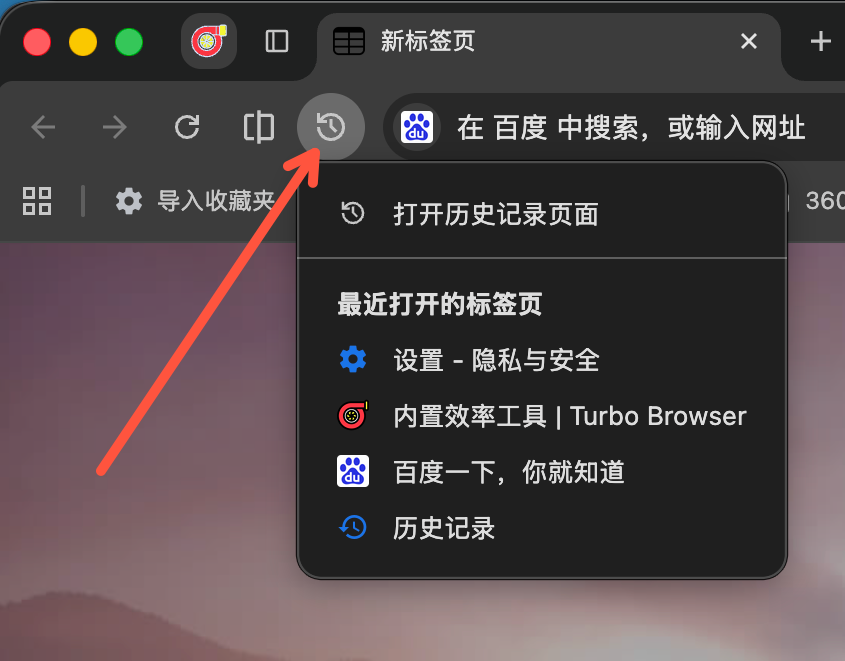
Closed-tab restore: quickly bring back pages from the recently opened tabs list
Paste and open
Right-click the tab strip New tab button to read the clipboard and open a new tab:
- URL — navigate directly
- Plain text — search with your default engine (same as the address bar)
Works in horizontal and vertical tab layouts. If the current tab is already an NTP or blank page, it reuses that tab so you do not get an extra empty tab. Toggle in Settings → Tabs and bookmarks (Paste and open clipboard URL when right-clicking +, on by default). When off, right-clicking + opens a small account tab instead.
Tab search
Settings → Tabs and bookmarks can place the horizontal tab strip Tab search button on the left or right (left by default). The option is hidden in vertical tabs.
Open tabs list sort order can be Recently used (default, same as upstream) or Tab strip order; included in Turbo sync. With Tab strip order, the current tab is selected by default.
Vertical tabs
Tabs along the side of the window (left or right) are easier to manage when many are open. Switch with Tab layout toggle or Settings → Tabs and bookmarks → Tab strip position.
Full guide: Vertical tabs.
Small account tabs
Persistent identities inside a normal window (sign-in is remembered). Create / open / delete from the app menu, or Ctrl+M / ⌃⌘M. Bookmarks and links can open in the matching account.
Full guide: Small account tabs.
Related
- Split view — side-by-side or top-and-bottom panes
- Immersive mode — auto-hide tab strip and toolbar (temporarily switches back to horizontal tabs)
- Mouse gestures — close / switch / duplicate tabs, open small account tabs, and more
See also
- Vertical tabs — side layout details
- Small account tabs — persistent identities and multi-account sign-in
- Built-in productivity — screenshots, split view, themes, and more
- Practical tips — more everyday shortcuts
- Features — full capability list