

Shortcuts
Default shortcuts and common efficiency actions in Turbo Browser. Change the boss key and custom shortcuts in Settings → Mouse gestures. For mouse gestures, see Mouse gestures. More details: Boss key & mouse gestures.
Global shortcuts
| Feature | Windows | macOS |
|---|---|---|
| Region screenshot | Ctrl + Shift + X | Cmd + Shift + X |
| Boss key (hide/show window) | Ctrl + Q | Ctrl + Q (Control, not Command) |
| Immersive mode (auto-hide tab strip/toolbar) | Ctrl + F11 | Cmd + F11 |
| Small account tab (in a normal window) | Ctrl + M | ⌃⌘M (Control + Command + M) |
| Mini-window always on top (video hover) | Alt + P | Option + P |
| Switch to 1st–8th / last tab | Ctrl + 1–8 / Ctrl + 9 | Cmd + 1–8 / Cmd + 9 |
| Fine zoom (hold Shift, 5% steps) | Ctrl + Shift + +/- | Cmd + Shift + +/- |
| Reload | F5 / Ctrl + R | F5 / Cmd + R |
| Hard reload | Ctrl + F5 / ⇧ + F5 | Ctrl + F5 / ⇧ + F5 |
| Alt + left-click quick-save image | Alt + left-click image | Option + left-click image |
TIP
Press the boss key again to restore the window. On macOS it uses the Control key so it does not conflict with Cmd + Q (Quit). In Settings → Mouse gestures you can separately toggle Mute while hidden and Restore to foreground (both on by default). Restoring a pinned window keeps it on top. Some Mac keyboards need Fn for F11 (Fn + Cmd + F11). macOS also supports F5 / Ctrl·⇧+F5 reload for muscle memory from Windows. See Small account tabs, Fine zoom, and Immersive mode. Alt + left-click image save can be toggled and configured under Settings → Downloads; see Download enhancements. Common actions can also be remapped after you turn on Custom shortcuts in Settings → Mouse gestures.
Custom shortcuts
Turn on Custom shortcuts in Settings → Mouse gestures (off by default). Common items are shown by default; less-used items fold into More shortcuts (a settings search that hits a folded row expands it first). You can then assign keys to common browsing actions (including Copy, Paste, Focus address bar, Duplicate tab, Open current page in a small account tab, Empty cache and hard reload, 1st–8th / last tab, Switch to last used tab, copy URL / title + URL / open clipboard URL, Open download panel, Open Developer Tools, Show bookmark menu, and more); defaults match the built-in shortcuts (Focus address bar defaults to Ctrl+L / Mac ⌘L; Ctrl/Cmd+1–9; copy URL / title + URL / open clipboard URL default to Alt+C / Alt+L / Alt+T; Show bookmark menu defaults to Alt+B; Developer Tools defaults to Ctrl+Shift+I / Mac ⌥⌘I; Duplicate tab, Empty cache and hard reload, and Open current page in a small account tab have no default shortcut). Combinations that conflict with the OS or built-in shortcuts cannot be saved. Turning the switch off restores the browser’s original shortcuts. Windows and Mac bindings sync separately, so changing one OS does not overwrite the other. Switch to the 2nd–8th tab is a custom shortcut only, not a gesture. Mouse gestures can also map Open download panel and Open Developer Tools, plus the copy / open-clipboard actions above; when the omnibox is focused, Copy / Paste gestures apply to the address-bar selection.
Screenshots
Turbo offers three capture modes:
| Mode | How to trigger | Notes |
|---|---|---|
| Full-screen capture | Left-click the toolbar screenshot button | Captures the entire screen |
| Save page as image | Right-click the toolbar screenshot button | Export the current page as an image, including full page |
| Save page as PDF | Right-click the toolbar screenshot button | Export the current page as PDF |
| Region capture | Ctrl + Shift + X (Windows) / Cmd + Shift + X (macOS) | Select any area on screen (Windows: Screenshot.exe; macOS: Screenshot.app) |
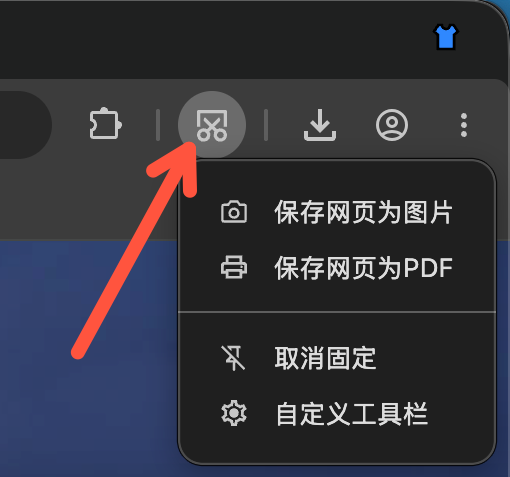
On macOS, capture may ask for Screen Recording permission the first time. If the global shortcut does nothing, allow Turbo under System Settings → Privacy & Security → Accessibility.
Mouse gestures
Hold the right button and drag for back, scroll, close tabs, and more — with path preview and custom mappings. Full guide and defaults: Mouse gestures.
Tabs & address bar
| Action | Behavior |
|---|---|
| Tab strip Tab layout toggle | Switch horizontal/vertical tab layout (see Vertical tabs) |
| Toolbar Restore page (left-click) | Restore the most recently closed tab |
| Toolbar Restore page (right-click) | Recent-closed items grouped by window / group / split view (up to 20), open in the current window |
| Double-click tab | Close tab (toggle in Settings → Tabs and bookmarks) |
| Right-click tab | Close tab (hold Shift for the context menu; toggle in Settings → Tabs and bookmarks) |
| Tab 🔊 | Mute / unmute that tab’s audio |
| Toolbar Mute | One-click mute / unmute all tab audio in the current profile (pinnable; while muted it also appears temporarily if unpinned) |
| Close a window with multiple tabs | Confirm dialog (supports “Don’t ask again”) |
| Close last tab | Default: open a new tab first; change in Settings → Tabs and bookmarks to close the window or always open a new tab. See Tabs → Close last tab |
| Click bookmark | Settings → Tabs and bookmarks How bookmarks open: current / foreground / background; see Bookmark bar |
| Toolbar Home | Settings → Tabs and bookmarks How Home opens (default: current tab); see Tips |
| Right-click New tab | Paste and open (toggle in Settings → Tabs and bookmarks; when off, opens a small account tab) |
| Webpage link context menu Open link in small account tab | Open the link in a small account identity inside a normal window |
| Address bar hover Copy link | Left-click copies the URL; right-click copies title + URL |
| Address bar search-engine dropdown | Switch default search engine when the address bar is empty or being edited |
| Address bar hover Scan QR code | Share current page (copy or download QR image) |
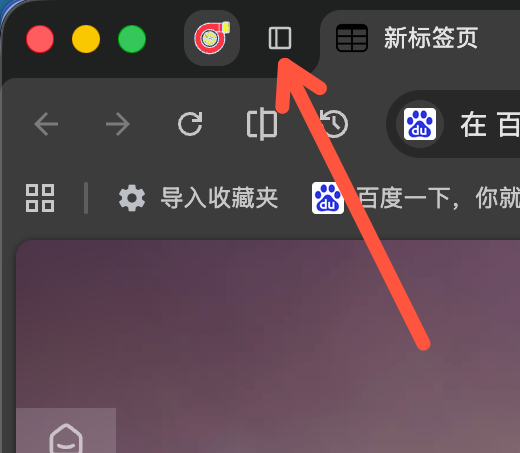
Vertical tabs: click the button on the left of the tab strip, or change tab position in Settings
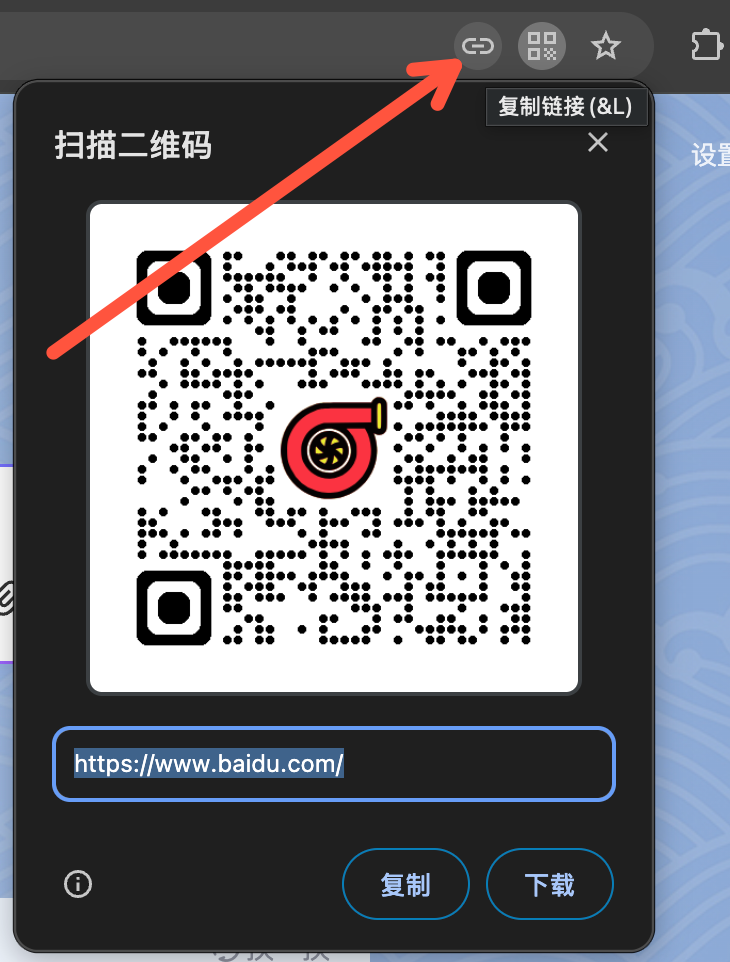
Address bar: hover the copy-link or QR code icon to quickly copy the link or share the page
Context menu letters
After a right-click menu opens on a page, press the letter marked in that item instead of clicking it. The letter follows the UI language. In English:
| Menu item | Letter |
|---|---|
| Open link in new tab | T |
| Open link in new window | W |
| Open link in Incognito window | G |
| Open image in new tab | I |
| Save image as | V |
| Copy image | Y |
| Copy image address | O |
Press the letter once the menu is open. If two items in the same menu share a letter (for example Open image in new tab and Open original image in new tab are both I), the first press only highlights a row; press Enter to run it.
Windows hides these letters by default. To show the underline: on Windows 11 open Settings → Accessibility → Keyboard and turn on Underline access keys; on Windows 10 open Settings → Ease of Access → Keyboard and turn on Underline access keys when available under Change how keyboard shortcuts work (search Settings for “access keys”). Restart Turbo afterward; the setting is read only at startup. The letter still works when it is not drawn: right-click, then press it.
macOS context menus do not use these letters.
See also
- Mouse gestures — right-drag gestures and super drag
- Quick Start — recommended post-install setup
- Features — full capability list
- Help Center — FAQ and troubleshooting