

Sync
Turbo Browser supports Turbo account and Google account sign-in. After signing in, you can sync browsing data across devices.
No Turbo account yet? Register · Sign in
Sign-in options
Click the avatar in the top-right and choose an account type; you can also switch Turbo / Google accounts from the sign-in page, browsing data page, or history page:
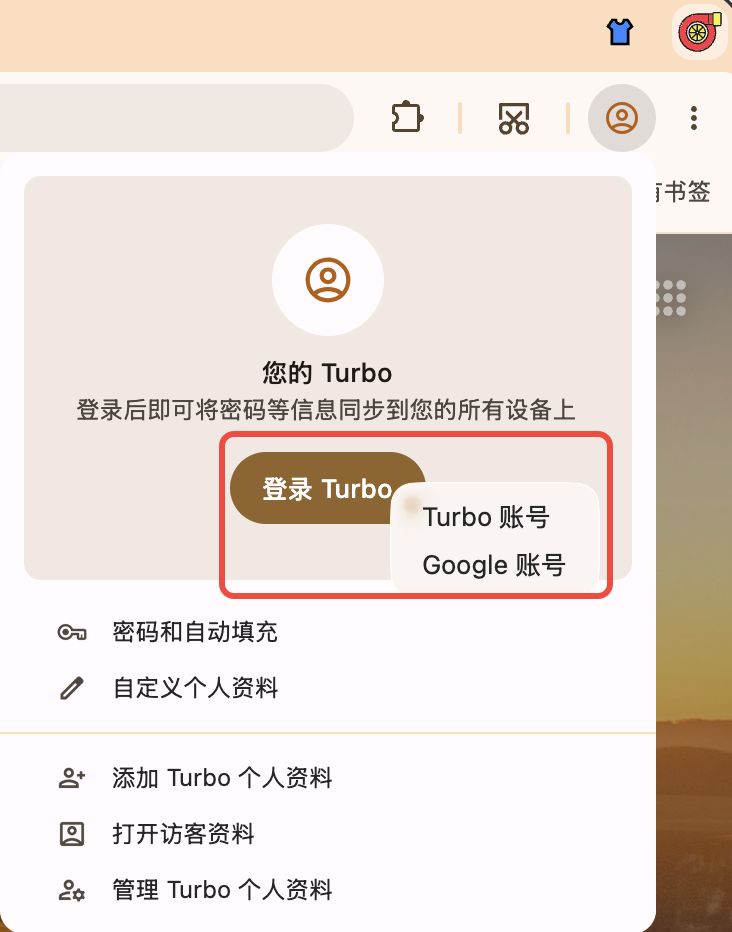
Dual sign-in: switch Turbo or Google account from the avatar menu, sign-in page, browsing data page, or history page
| Account | Notes |
|---|---|
| Turbo account | Sign in with email; data syncs via Turbo cloud |
| Google account | Sign in with Google; data syncs via Google Sync |
You can also sign in to a Turbo account from Settings → Profile → Sign in to Turbo. Turbo sign-in page: Sign in.
TIP
Turbo and Google accounts do not share data. Back up local data before switching accounts.
Cloud sync is best-effort and does not guarantee that data will never be lost or fully recoverable. Back up important data such as bookmarks and passwords separately. See the Terms of Service.
What you can sync
After sign-in, open Settings → Sync (or Settings → Profile → Sync) and enable items as needed. Sync scope follows the options shown in Settings.
Turbo account
Uses incremental sync. Currently syncs:
- Bookmarks
- Passwords (including Passkeys)
- Browser settings
- Extensions (including Edge store and Crx搜搜 sources)
- NTP My shortcuts
Settings can toggle bookmarks / passwords independently; turning one off stops that sync type. Browser settings also include startup pages, fonts, default search engine, proxy, profile name, and extras such as the video hover toolbar toggle. The default download, save-page, and quick-save-image folders are local paths and are not synced. Turbo accounts do not sync browsing history. Passkeys sync with passwords and may not appear as a separate toggle. If a pull is in progress at startup, local changes you make meanwhile are kept and pushed after the pull finishes.
Password sync and local backup
On a new install, Turbo account password sync is off by default. Turn it on under Settings → Sync (or Manage sync) when you want cloud passwords. You can also import / export from the local Password manager → Settings for your own backup. Upgrading does not change existing sync choices.
Advanced sync settings let you manually upload to overwrite the cloud or download to overwrite local data (only for enabled items; requires confirmation and shows progress and per-item results) to fix sync issues caused by dirty data. You can also export / import changed syncable settings under Settings → Reset settings (some items need a restart).
Google account
Uses Google Sync. Items and behavior follow Google / Settings (often including browsing history); Turbo settings can also sync.
Steps
- Sign in from the avatar menu or Settings.
- Open Settings → Sync and select items to sync.
- Keep a stable network connection; the first sync may take a few minutes.
Troubleshooting
If sync fails, see FAQ → Turbo sync failed — what to do?. Quick steps:
- Check your network connection.
- Confirm you are still signed in.
- Retry later; the first sync or large data changes may take longer.