

Windows SmartScreen blocked Turbo install — what to do?
You can continue installing — this usually isn't malware or a corrupted package. Microsoft Defender SmartScreen blocks software that hasn't yet built a Microsoft reputation score. As a newer Chromium browser, Turbo may trigger this on first install — that's normal.
Correct steps
- Download the Windows installer from the official Download & install page.
- Double-click to run the installer.
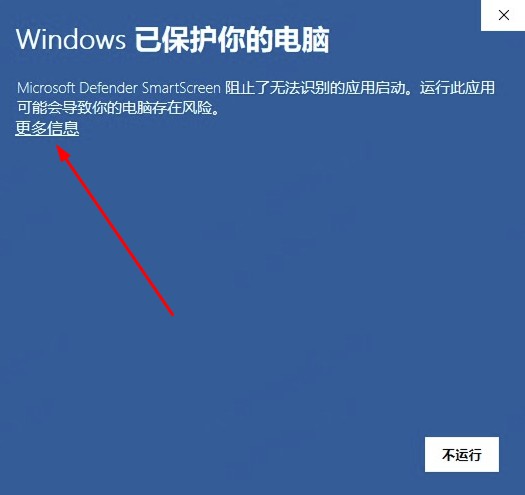
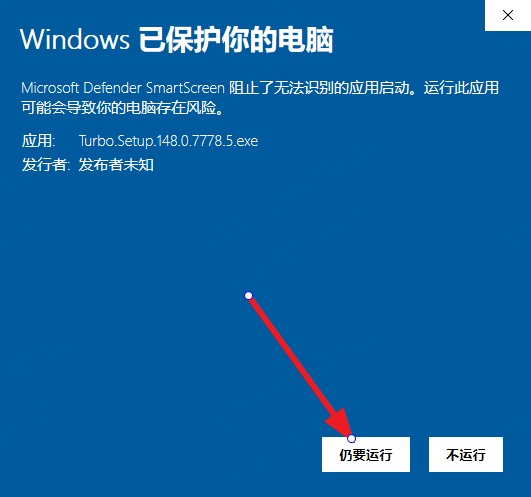
- If a blue SmartScreen window says "Windows protected your PC" or "An unrecognized app was blocked":
- Click "More info"
- Then click "Run anyway"
- Complete the install wizard; optionally create a desktop shortcut and pin to taskbar.
- On first launch, skip the intro page if you prefer and start browsing.
Why does this happen?
| Reason | Explanation |
|---|---|
| Reputation | New or low-download signatures haven't accumulated SmartScreen trust yet |
| Not a verdict | SmartScreen is preventive — it doesn't confirm malware |
| Official download | Use only tbrowser.cn official links — not third-party modified builds |
As more users install from the official channel, SmartScreen prompts usually decrease over time.
Will Defender keep alerting after install?
During normal browsing, Turbo behaves like other Chromium browsers. If SmartScreen appears only at install time, the steps above are enough. If antivirus keeps blocking running Turbo, add the install folder to your allow list or contact Help center.
System requirements
- Windows 10 or later, x64
- 500MB+ disk space recommended
Full details: Download & install → Windows install.
FAQ
No "Run anyway" button?
Click "More info" first to expand details. Older Windows versions may use slightly different wording — same logic.
Corporate group policy blocks it?
Some managed PCs can't run unapproved software — contact your IT administrator.
Similar issue on macOS?
macOS usually shows "cannot verify developer" — different fix. See macOS cannot open Turbo.