

Download & Install
Turbo Browser is available for Windows and macOS, built on Chromium 154.0.8037.103.
Download
Choose your platform to download the latest installer. Windows users can also see Turbo for Windows download.
| Platform | Notes |
|---|---|
| Windows Setup | Installer; optional desktop shortcut and pin to taskbar |
| Windows Portable | Zip package — extract and run, no install; good for USB or temporary use |
| macOS | .dmg / .app installer |
System requirements
| Item | Windows | macOS |
|---|---|---|
| OS | Windows 10 or later recommended | macOS 11 or later |
| Arch | x64 | Apple M series (Intel not supported) |
| Disk | ~500MB+ for app and profile data | Same |
Windows install
Setup installer
- Download the Windows installer and run the wizard.
- If Microsoft Defender SmartScreen shows “Windows protected your PC”, the installer may not yet have Microsoft reputation — this is common for new builds. Click More info, then Run anyway. See SmartScreen blocked install for details.
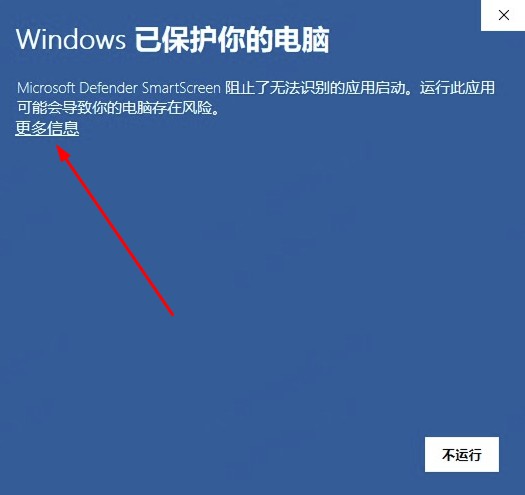
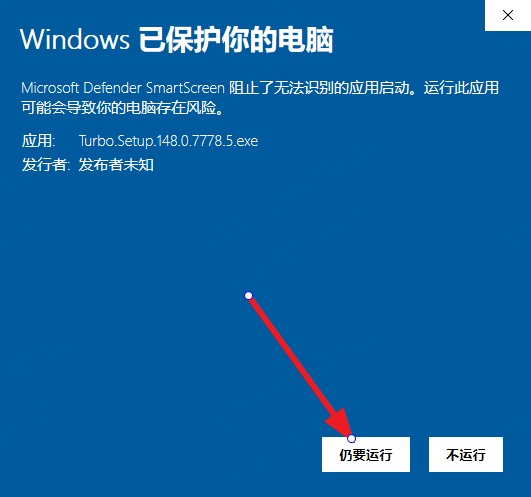
- Complete setup; optionally create a desktop shortcut.
- First launch can skip the built-in first-run intro and go straight to browsing.
The installer is tailored for Turbo branding, shortcuts, and pin-to-taskbar. After install, Settings → Default browser can also Create shortcut, Pin to taskbar, and Set as PDF app.
Portable (zip)
- Download the portable zip and extract it to any folder (e.g. a USB drive).
- Run
turbo.exefrom that folder — no installation required. - Profile data stays with the app folder for easy copy/move; to remove it, delete the folder.
- You can set it as the system default under Settings → Default browser; the same page also offers Create shortcut, Pin to taskbar (Windows), and Set as PDF app. It appears as “Turbo (Portable)” with the folder name and does not interfere with the installed build, so multiple portable copies are easy to distinguish.
- Portable builds support in-app in-place updates: new versions write beside the existing folder; profile data stays beside the app and it does not become an installed build. The About page shows Relaunch before switching to the new version (silent update does not kill the process). Settings, extensions, and other data survive moving to another PC. Portable copies in different folders stay separate on the taskbar.
macOS install
- Open the
.dmgand drag Turbo into Applications. - If macOS warns about an unverified or unidentified developer, allow it under System Settings → Privacy & Security, or run:
$ xattr -d com.apple.quarantine /Applications/Turbo.appFull troubleshooting: macOS won't open Turbo.
- Launch the app; screenshot features may need accessibility permissions (follow on-screen prompts).
Updates
After opening About, a new version shows the version number first — click Update now to download and install; auto-update can be turned off. You can also download a full installer from the download page for a clean upgrade. See the Changelog for release notes.
Uninstall
- Windows: Uninstall via Settings → Apps, or use the uninstaller in the install directory.
- macOS: Move
/Applications/Turbo.appto Trash; profile data is stored in your user config directory (similar to Chrome).
Uninstall does not remove cloud-synced bookmarks or passwords. Back up any local-only data first.