

Migrate from Edge to Turbo Browser
Yes. Turbo Browser supports one-click import from Microsoft Edge — bookmarks, passwords, autofill, and extensions (extensions depend on the current version). Edge and Turbo share the Chromium ecosystem, so web compatibility and extensions are similar — plus you get Chrome and Edge dual extension stores.
Migration usually takes 3–5 minutes.
What can be migrated?
| Item | Supported | Notes |
|---|---|---|
| Bookmarks / favorites | ✅ | Includes favorites bar and folder structure |
| Passwords | ✅ | Synced and local passwords saved in Edge |
| Autofill | ✅ | Forms, addresses, and other autofill data |
| Extensions | ⚠️ | Depends on settings UI; some may need reinstall from the store |
| Browsing history | ❌ | Use Edge sync or back up separately |
| Edge-specific settings | ❌ | Collections and similar Edge-only features are not imported; vertical tab layout is not carried over either — re-enable it in Turbo (see Vertical tabs) |
TIP
If you sync Edge with a Microsoft account, Turbo cannot pull Microsoft cloud data directly — use the local import wizard or sign in with a Google / Turbo account for new sync. See Sync.
Steps
1. Install Turbo Browser
If not installed yet, download from Download & install.
2. Open the import wizard
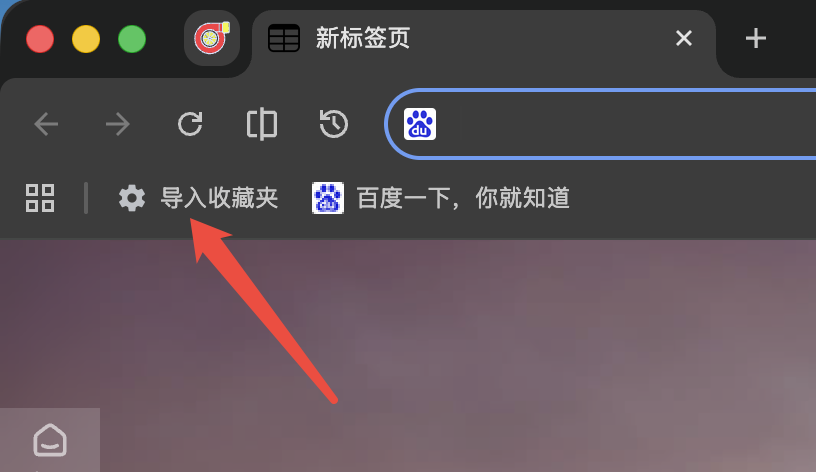
Entry A — Bookmarks bar
Click Import bookmarks:
Entry B — Settings
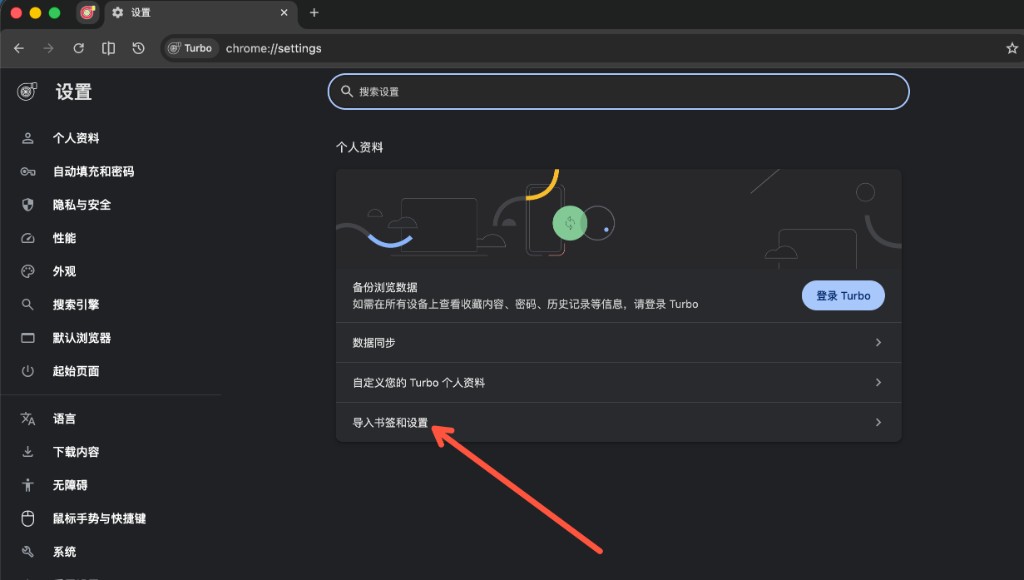
Open Settings → Profile → Import bookmarks and settings:
3. Select Edge and choose items
- Choose Microsoft Edge in the source list.
- Check bookmarks, passwords, autofill, extensions, etc.
- Confirm and start import.
4. Sign in and sync (recommended)
Sign in with a Turbo account or Google account and enable Sync.
Common reasons to switch from Edge
- Need Chrome Web Store + Edge Add-ons for extensions and themes
- Want built-in mouse gestures, boss key, and screenshots without extra extensions
- Prefer Turbo cloud sync or Google sync instead of Microsoft account only
- See How is Turbo different from Edge?
FAQ
Can Edge and Turbo be installed together?
Yes — separate user data directories, no conflict.
Some Edge extensions didn't migrate?
Reinstall from the Chrome Web Store or Edge Add-ons, or use official .crx packages such as AdGuard and Immersive Translate.
Same steps as migrating from Chrome?
Same flow, different source browser. Chrome users see Migrate from Chrome.
Can macOS users also import from Safari?
Yes — choose Safari in the import wizard for bookmarks. If Full Disk Access is missing, the wizard will guide you. See Data import.
Further reading
- Data import — full guide (includes Chrome / Safari)
- Vertical tabs — how to switch to the side tab layout after migrating
- How is Turbo different from Edge?
- Quick start
- Download & install