

Screenshots
Turbo Browser includes built-in capture tools — full screen, web page export, and region selection — without extra extensions.
Toolbar screenshot button
The screenshot button on the toolbar is the main entry:
- Left-click — Full-screen capture
- Right-click — Web page capture: save as image (including full page) or save as PDF
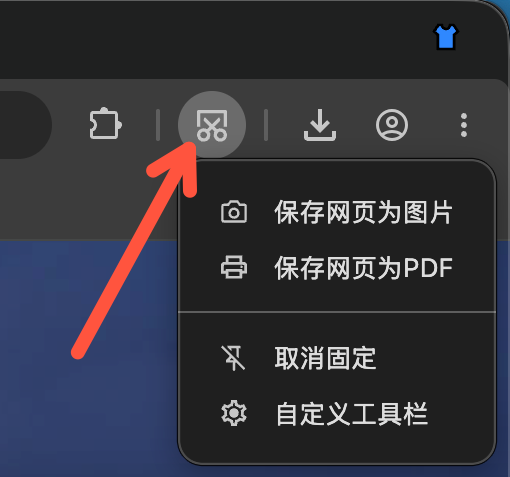
Toolbar screenshot button: left-click full screen, right-click web page capture
All capture modes
| Mode | How to trigger | Notes |
|---|---|---|
| Full-screen capture | Left-click the toolbar screenshot button | Captures the entire screen |
| Save page as image | Right-click the toolbar screenshot button | Export the current page as an image, including full page |
| Save page as PDF | Right-click the toolbar screenshot button | Export the current page as PDF |
| Region capture | Ctrl + Shift + X (Windows) / Cmd + Shift + X (macOS) | Select any area on screen |
Bundled tools
- Windows —
Screenshot.exe - macOS —
Screenshot.app
macOS permissions
The first time you capture on macOS, the system may ask for Screen Recording permission. If the global shortcut does nothing, allow Turbo under System Settings → Privacy & Security → Accessibility.