

Can Turbo Browser install Chrome extensions?
Yes. Turbo Browser is built on Chromium and supports Chrome extensions (Manifest V3); Manifest V2 extensions from the Edge Add-ons store remain installable (e.g. Dark Reader). Install from the Chrome Web Store just like Chrome, or use the Edge Add-ons store, Crx搜搜, or official .crx packages.
Three ways to install
1. Chrome Web Store (most common)
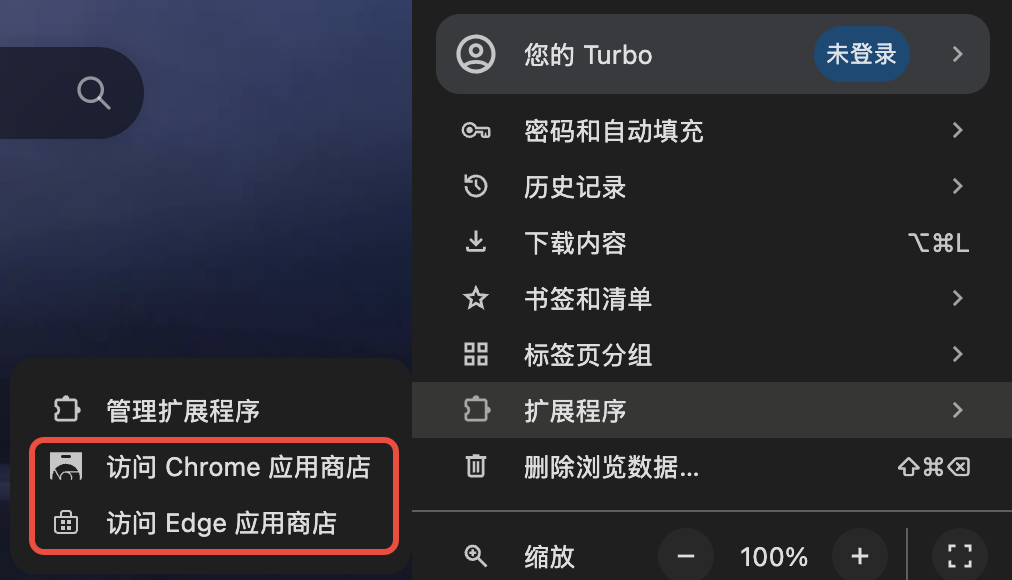
Entry A — Browser menu
Open Menu → Extensions → Chrome Web Store:
Entry B — Extensions management page
Type chrome://extensions in the address bar, then use the link at the bottom of the page:
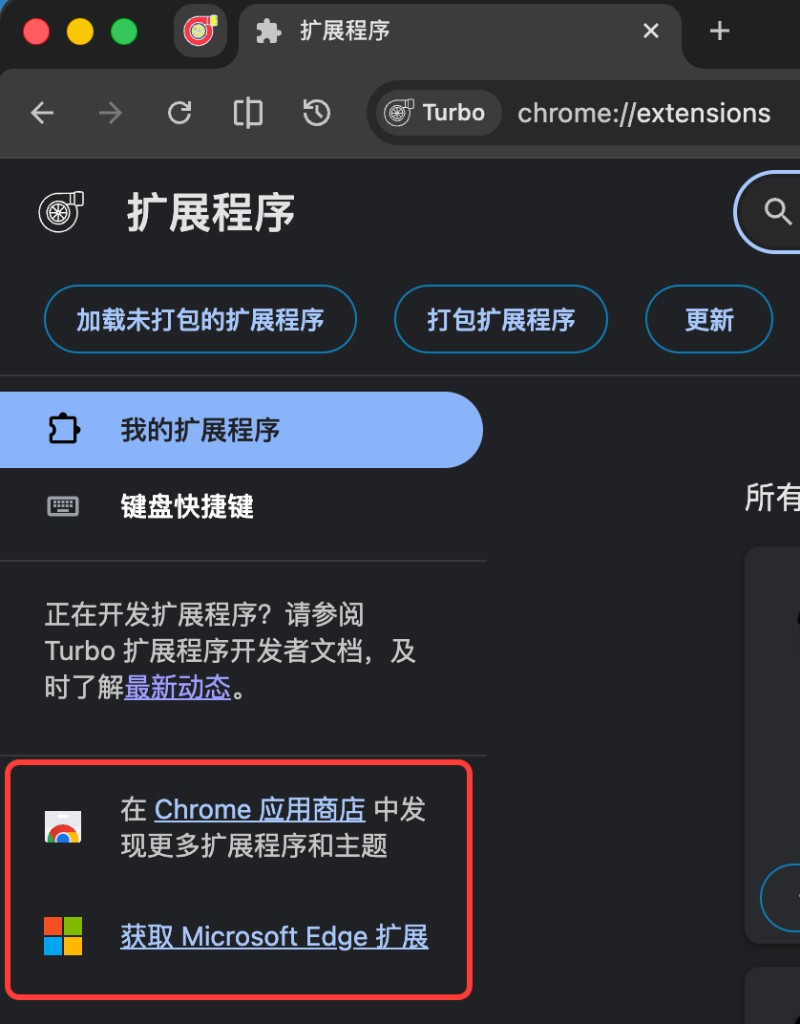
Find an extension in the store and click Add to Chrome (Turbo follows the standard Chromium install flow).
2. Edge Add-ons store
The same menu also opens the Edge Add-ons store — some extensions are only listed there. Manifest V2 extensions from that store (e.g. Dark Reader) remain installable.
3. Crx搜搜 and .crx packages
- Open Crx搜搜 from the
chrome://extensionssidebar for one-click download and install. - Download a
.crxfrom the official site or a trusted source, then drag it into the browser window or double-click and follow prompts. Recommended from the official site:
Moving from Chrome — do extensions come along?
When you import from Chrome, you can check Extensions (subject to the current version). If some extensions weren't imported, reinstall the same extension from the store.
Extensions can also sync after signing in to a Turbo or Google account — see Sync (options vary by version).
Compatibility
| Type | Support |
|---|---|
| Manifest V3 extensions | ✅ Mainstream support |
| Manifest V2 extensions (Edge Add-ons) | ✅ Installable (e.g. Dark Reader) |
| Chrome Web Store install | ✅ |
| Edge Add-ons | ✅ |
.crx offline package | ✅ |
| Crx搜搜 one-click install | ✅ |
| Developer "Load unpacked" | ✅ See Extension development |
| Extensions relying on Chrome-only enterprise policies | ⚠️ Varies by extension |
| Chrome themes | Partially via Edge theme store or skin features; you can also build a theme extension |
TIP
A few extensions detect "Google Chrome" and refuse to install. Try the Edge store version or contact the author. Most popular extensions (ad blockers, translators, password managers, etc.) work fine.
FAQ
Are Turbo extensions 100% identical to Chrome?
Same engine means API-level compatibility; individual extensions may behave differently due to brand detection or enterprise policies — test after install.
Do extensions sync?
After signing in with a Turbo account or Google account, enable extension sync under Settings → Sync (options vary). If sync fails, see Sync troubleshooting.
How do I manage installed extensions?
Open chrome://extensions or Menu → Manage extensions to enable, disable, or remove extensions.