

Immersive mode
When enabled, Turbo auto-hides the tab strip and toolbar so pages use more of the window. Move the pointer to the top edge of the window to show chrome again. Useful for reading, video, or a cleaner UI.
Available on Windows and macOS. Unlike system fullscreen (F11), immersive mode works in a normal window.
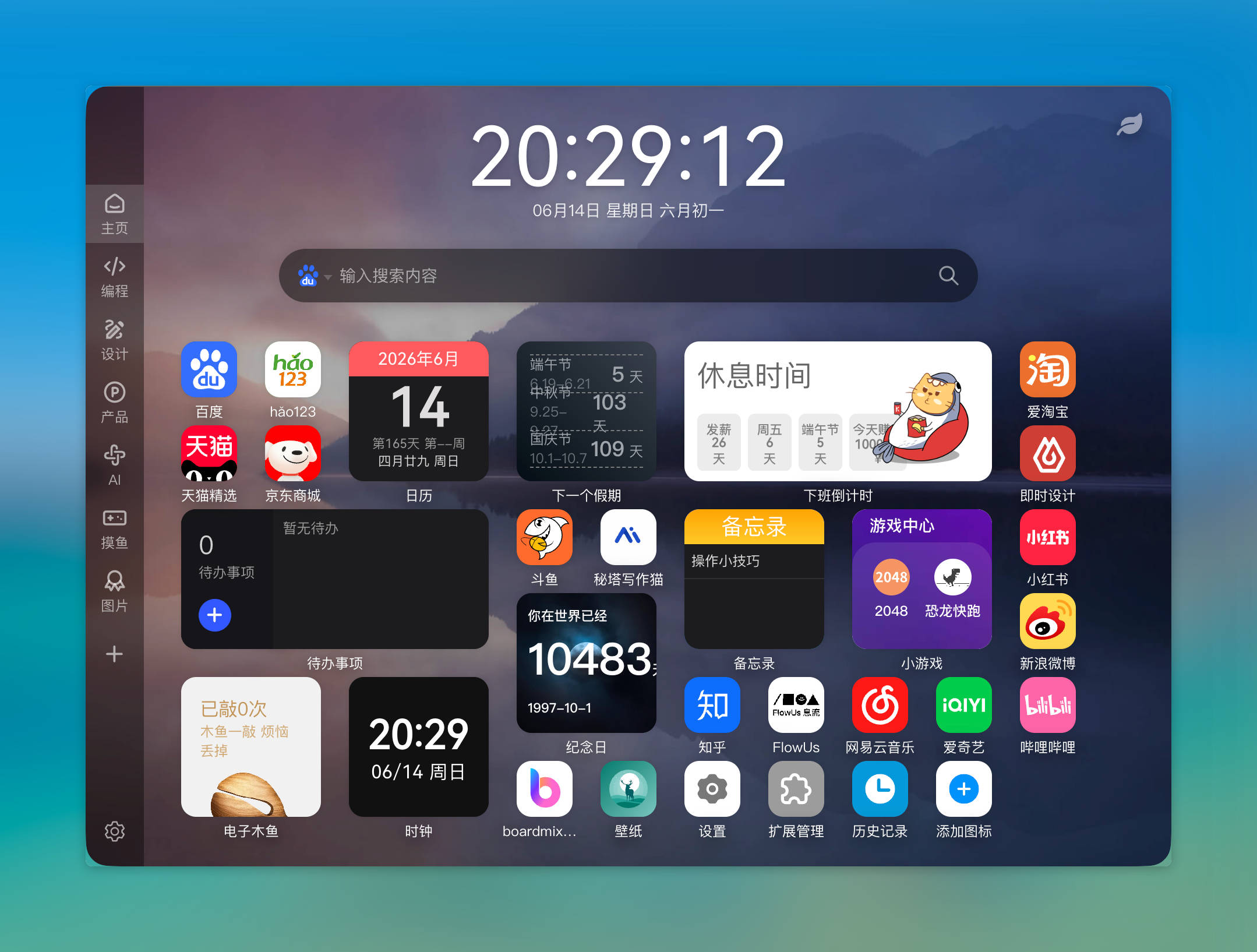
Immersive mode schematic: auto-hide tab strip and toolbar for a larger content area; move the pointer to the top of the window to reveal chrome again
How to turn it on
Use any of these:
Browser menu
Open the menu at the top right. On the Zoom row, click the Immersive mode button (next to Full screen):
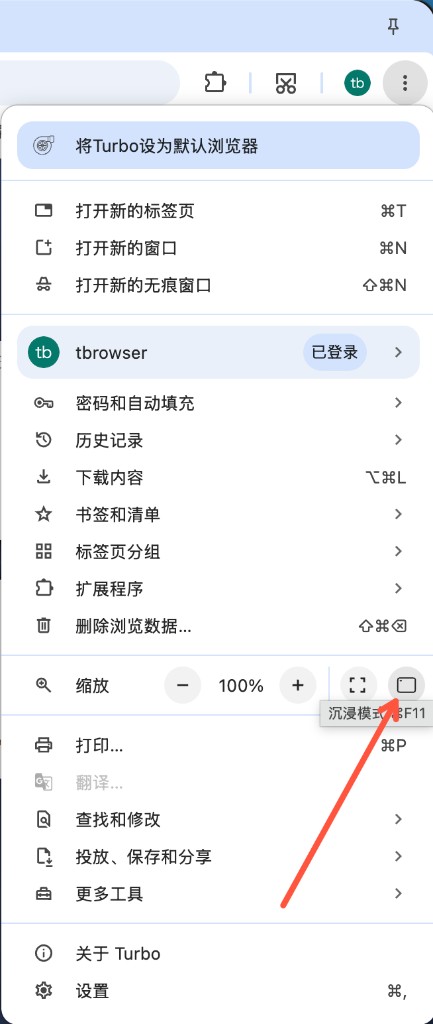
Menu → Zoom row → Immersive mode
macOS menu bar
In the View menu, next to Enter Full Screen, use Enter Immersive Mode / Exit Immersive Mode (the label switches with the current state).
View → Enter Immersive Mode / Exit Immersive Mode
Settings
Open Settings → Appearance and enable Immersive mode:
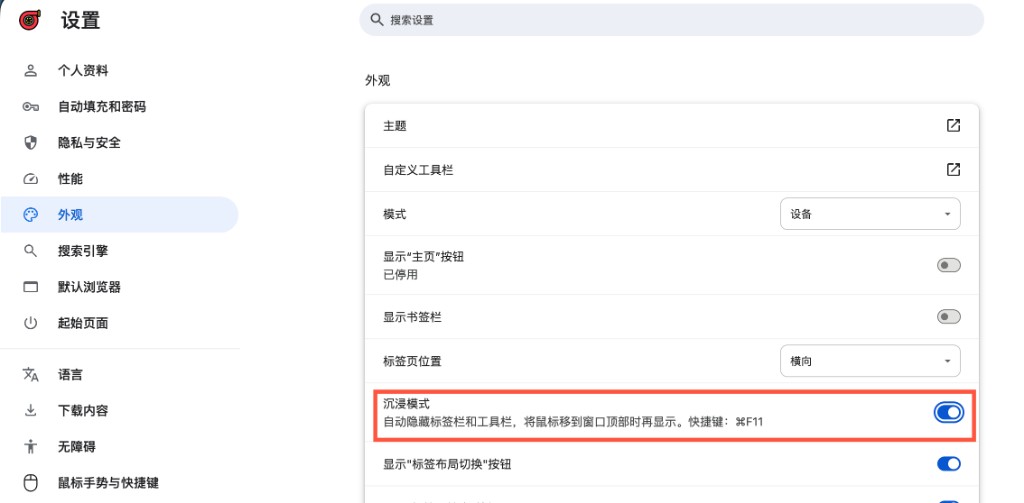
Settings → Appearance → Immersive mode
Shortcut
| Platform | Shortcut |
|---|---|
| Windows | Ctrl + F11 |
| macOS | Cmd + F11 |
macOS shortcut
On many MacBook keyboards you need Fn to emit F11, so the combination is Fn + Cmd + F11. Immersive mode is not the same as system fullscreen (F11 alone).
How it works
- After enabling, the tab strip and toolbar tuck away at the top.
- Move the pointer to the very top edge of the window to reveal chrome for tabs, the address bar, and toolbar actions.
- Move away and chrome auto-hides again.
While chrome is hidden, a thin strip along the top of the window (about 40 pixels tall) still works like a title bar:
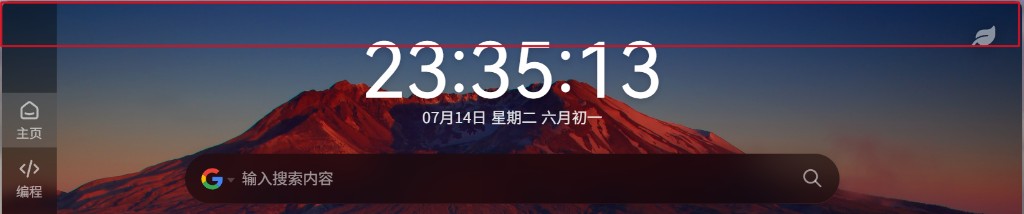
While chrome is hidden: the thin top strip still lets you drag or double-click to maximize the window
- Drag — move the window; top-edge drag leaves room for the vertical scrollbar so it is not stolen
- Double-click — maximize or restore
Keep window on top
The Keep window on top pin keeps Turbo above other windows — handy for reference or multitasking. In immersive mode it is always shown on the right of the title bar (near the close button); outside immersive mode you can show or hide it in Customize toolbar, similar to the skin button. The skin button is also no longer forced hidden in immersive mode. Standalone PWA title bars also show the pin when it is enabled.
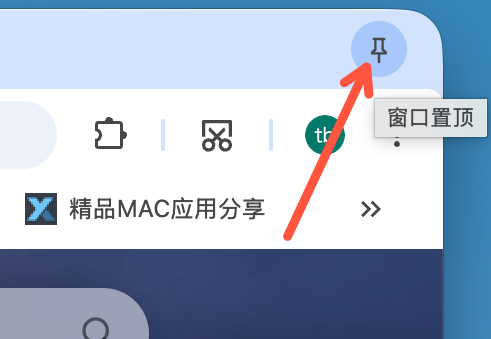
Title bar (right) → Keep window on top
Notes
- Vertical tabs — Entering immersive mode temporarily switches to the horizontal tab layout so top chrome can hide; switch back to Vertical tabs after you turn immersive mode off.
- Switching tabs — In windowed immersive mode, switching tabs no longer briefly reveals the top chrome.
Ctrl+T(macOSCmd+T) still expands it because the address bar takes focus. - Fullscreen — System
F11fullscreen is separate; immersive mode is for windowed browsing with more content space. - Off by default — Immersive mode starts disabled; toggle anytime.
See also
- Vertical tabs — side tab layout (and how it interacts with immersive mode)
- Built-in productivity — split view, themes, and more
- Shortcuts — includes the immersive mode shortcut
- Features — full feature list
- Practical tips — more everyday tips