

Mouse gestures
Turbo Browser includes built-in mouse gestures — no extensions needed. Hold the right mouse button and drag to go back or forward, scroll, close tabs, and more. Handy for quick navigation and managing many tabs.
Available on Windows and macOS.
How to enable
- Open Settings, search for “mouse gestures”, or open that panel.
- Turn on Mouse gestures.
- Optionally enable gesture path preview, and adjust trail color, width, and action mappings.
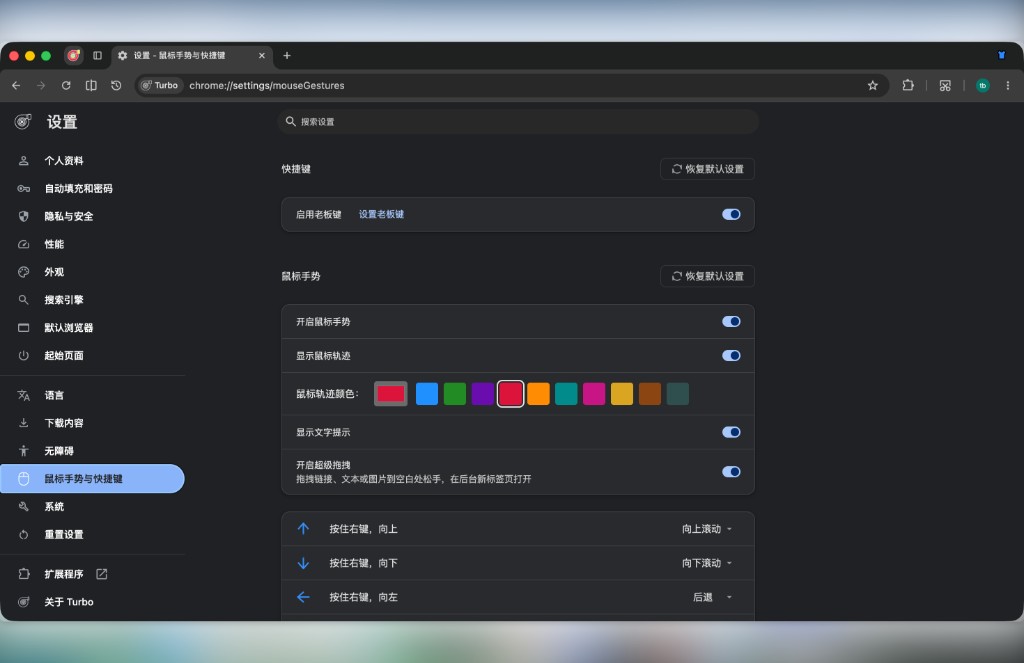
Settings → Mouse gestures: enable gestures, path preview, and action mappings
How to use
- On a page, hold the right mouse button and start dragging.
- Move along the intended direction (or combination path); with preview on, a trail appears on screen.
- Release the right button to finish the gesture and run the action.
Slight overshoot is still recognized; scribbling cancels the gesture. If movement stays below the dead-zone threshold after right-button press, the gesture does not start and no trail is drawn; release still opens the menu. After right-button wheel tab switching you can keep drawing; release to run the new gesture. While drawing, wheel tab switching keeps the gesture trail; releasing still runs the original gesture.
Right-click menu vs gestures
A short right-click still opens the page context menu. Gestures fire only when you hold right and drag. To gesture only, don’t tap and release in place.
Default mappings
Hold the right button and drag after enabling. Common defaults (full list and customization: Settings → Mouse gestures):
Navigation
| Gesture | Default action |
|---|---|
| Left ← | Go back |
| Right → | Go forward |
Scroll
| Gesture | Default action |
|---|---|
| Up ↑ | Scroll up |
| Down ↓ | Scroll down |
| Up then down ↑↓ | Scroll to bottom |
| Down then up ↓↑ | Scroll to top |
Scroll to top / bottom, and scroll up / down / left / right, all scroll the area under the cursor.
Tabs
| Gesture | Default action |
|---|---|
| Right then up →↑ | Open new tab |
| Down then right ↓→ | Close current tab |
| Down then left ↓← | Close other tabs |
| Right then left →← | Reopen last closed tab |
| Up then left ↑← | Previous tab |
| Up then right ↑→ | Next tab |
Other
| Gesture | Default action |
|---|---|
| Right then down →↓ | Reload |
TIP
Combination gestures are often faster than single directions — e.g. →← reopen last closed tab, ↓→ close current tab, ↑← / ↑→ switch adjacent tabs.
Three-direction gestures (hold the right button and draw three segments, including reversals: up-down-up, down-up-down, left-right-left, right-left-right) live under More gestures, with no action by default. If the third segment is unfinished, the original two-segment action still runs. Scroll up / down / left / right scrolls the area under the cursor. The trail can also be drawn over Developer Tools. Mute toggles only the current tab.
Customize
In Settings → Mouse gestures you can:
- Assign or change the action for each path (including close tabs to the left/right, force reload, copy, paste (address-bar selection when the omnibox is focused), duplicate tab, focus address bar, empty cache and hard reload, open small account, open incognito window, pin/mute, screenshot, toggle vertical tabs, close tab and activate left/right, 1st / last tab, Switch to last used tab, forum previous/next page, Open Settings, Open download panel, Open Developer Tools, open History / Bookmark Manager / Downloads, Maximize / Restore Window, copy URL, copy title + URL, open clipboard URL, boss key, and more)
- Hold left button, click right button: can be mapped separately (None by default); unbound actions do not intercept the context menu
- Turn gesture path preview on or off
- Adjust trail color for light or dark pages (deep blue by default)
- Adjust trail line width (included in Turbo sync)
Text tips
While drawing a gesture, show the action name as text (works with path preview):
| Option | Description |
|---|---|
| Tip style | Overlay (with background) or Outline text (YaHei white fill, thin stroke — easier to read) |
| Vertical position | Top / Middle / Bottom (about 25% / 50% / 75% of screen height) |
Changes apply immediately — no restart needed.
Super drag
Same panel as gestures (Settings → Mouse gestures); can be toggled separately. Link / text / image can each have their own up / down / left / right actions:
- Drag a link or image to blank page area → run that type’s action for that direction (open a new tab, copy, etc.)
- Drag text to blank area → copy or search; open-style actions search with your default engine (results open in a new tab)
- Find in page — dragging text or a link title opens Find in page and jumps to matches
- Search this site — dragging text searches with
site:current-domain + selected text(results open in a new tab) - Actions — background / foreground tab, small account tab, open in an incognito window, search in an incognito window, open in split view, copy text (image), copy link, copy selection + current URL, copy link text, download link/image, generate QR code (valid URLs only), Find in page, Search this site; a direction set to None no longer falls back to another direction
- Direction tip — Shows the current direction and action while dragging (on by default); can be turned off in Settings → Mouse gestures
- Cancel — Right-click during a drag to cancel
- Avoid text fields — Super drag avoids inputs, textareas, and contenteditable areas so the page can receive the drop
- Linked images — dragging a linked image prefers the link action; hold Shift to prefer the image action
- With extensions — After installing some extensions, dragging a link still shows the direction tip and can open it
The link context menu also includes Copy link text.
Webpage extras
Standalone Settings → Webpage extras sidebar page (no longer only at the bottom of the Mouse gestures panel):
- Paste on middle-click (off by default) — middle-click pastes in webpage text fields. See Tips → Paste on middle-click
- Auto-copy selected text (off by default) — selecting text copies it to the clipboard; optional Show toast (after success; same text is not repeated; off by default). See Tips → Auto-copy selected text
- Video hover toolbar (on by default) — mini window / in-page fullscreen / download on hover; opacity is adjustable (10%–100%). See Tips → Video hover toolbar
- Eye-comfort mode — warm filter with adjustable strength and background presets (bean green, light green, rouge, and more)
- Darken websites in dark mode (off by default) — when the browser is dark, sites without a dark theme can be darkened. See Tips → Darken websites in dark mode
- Show a tip when entering fullscreen — the tip appears for every fullscreen
- Script injection (off by default) — optionally inject local CSS / JS files into pages (same Script injection section); injected when the document element is created, including frames
Gestures not working?
- Confirm Settings → Mouse gestures is on.
- Confirm you hold right and drag (not left-click, and not a short right-click alone).
- If a site blocks the context menu, try gesturing on empty page area first.
See also
- Shortcuts — boss key, screenshots, and more
- Quick Start — recommended post-install setup
- Features — full feature list
- Boss key & mouse gestures — vs Chrome / Edge