

Data Import
Turbo Browser can import bookmarks, passwords, autofill, and extensions (per release support) from Chrome or Edge. On macOS, you can also import bookmarks from Safari.
Entry 1: Bookmarks bar
Click Import bookmarks on the bookmarks bar:
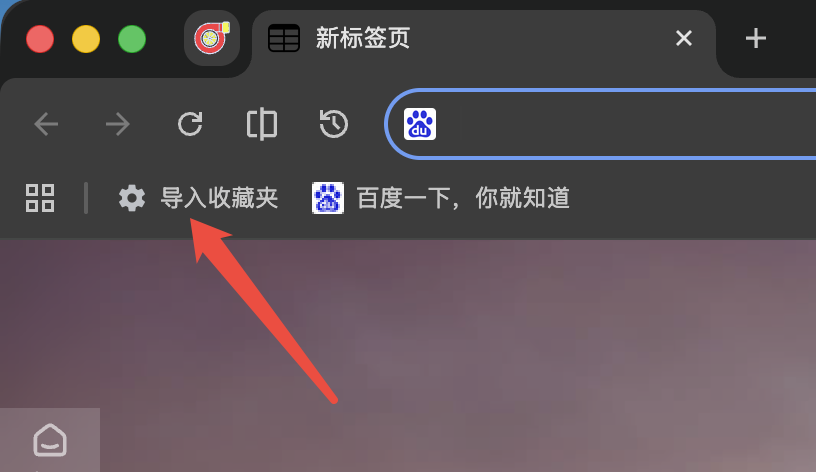
Import bookmarks button on the bookmarks bar
Entry 2: Settings
Open Settings → Profile → Import bookmarks and settings:
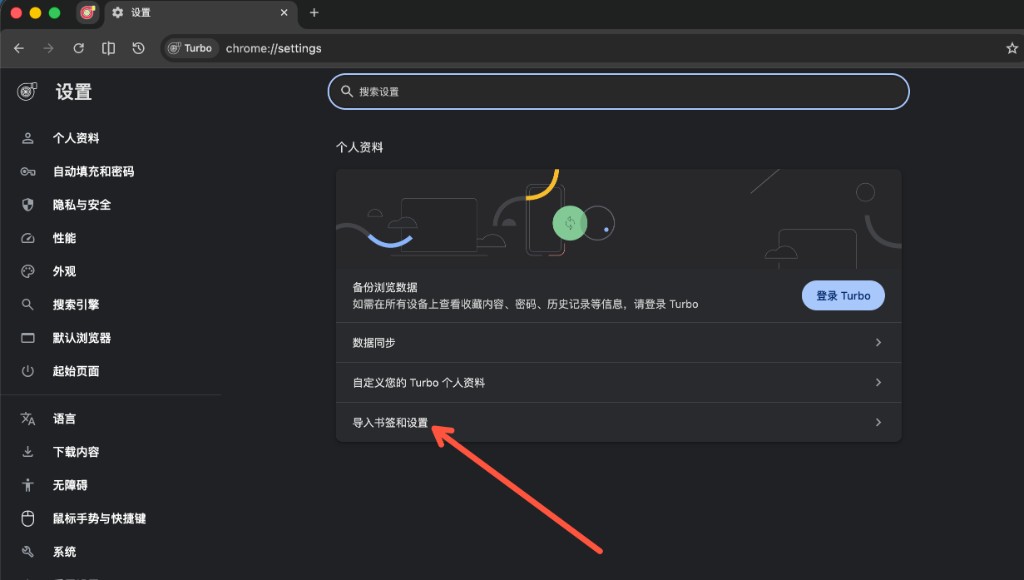
Settings → Profile → Import bookmarks and settings
Steps
- Open the import wizard from either entry above.
- Choose the source browser: Chrome, Edge, or (macOS) Safari.
- Select items to import:
- Bookmarks
- Passwords
- Autofill
- Extensions (per current release support; Safari is typically bookmarks only)
- Confirm and start import. Bookmark import preserves the original structure (including empty folders; no global URL deduplication).
macOS · Safari
If Safari bookmarks cannot be read, Turbo may need Full Disk Access. The wizard will guide you, or enable it under System Settings → Privacy & Security → Full Disk Access and retry.
macOS · Chrome / Edge
When importing from Chrome or Edge, if other browsers’ user data cannot be read, the wizard guides you to enable Files and Folders access; you can also turn it on under System Settings → Privacy & Security → Files and Folders and retry.
Extensions
Extension import varies by release — use the options shown in Settings. If some extensions are missing, install them from the Chrome Web Store or Microsoft Edge Add-ons. See Extensions.