

Vertical tabs
When enabled, tabs run down the side of the window instead of crowding into a single top strip. Titles and icons stay readable, so switching, closing, and finding pages is easier when you keep many tabs open. The strip can sit on the left or right.
Available on Windows and macOS. Switch between horizontal and vertical layouts anytime — no extension required.
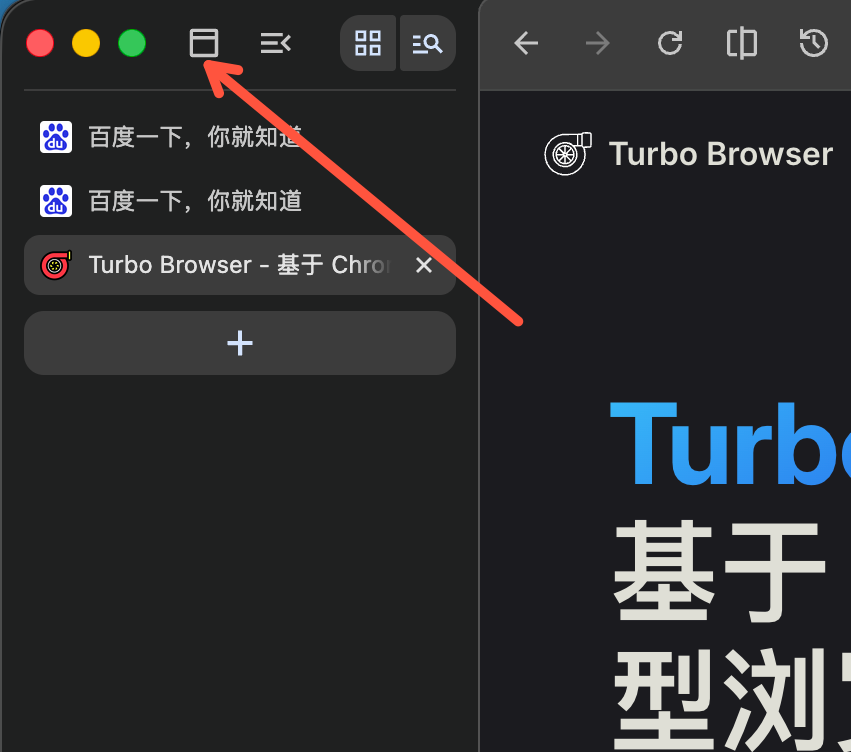
Vertical tabs: tabs listed along the side for easier browsing when many tabs are open
When it helps
- Lots of tabs — Horizontal tabs shrink into narrow chips or icons; vertical tabs keep more of each title visible
- Wide screens — A slim side strip trades a little horizontal space for a clearer tab list — useful for research and document work
- Coming from Edge — If you used Edge vertical tabs, you can switch Turbo to the same side layout in one click
How to turn it on
Use either method to switch horizontal / vertical layout.
Tab strip button (fastest)
Click the Tab layout toggle on the left of the tab strip:
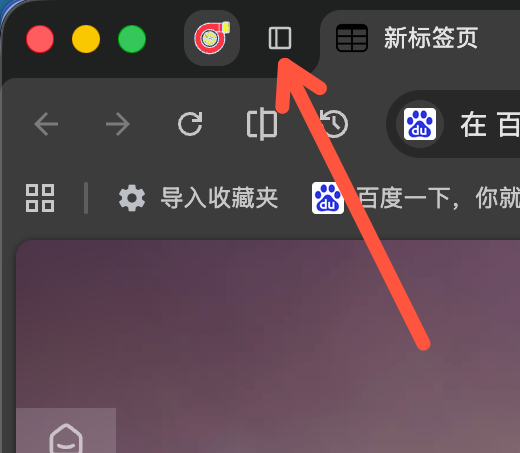
Tab strip left → Tab layout toggle
Settings
Open Settings → Tabs and bookmarks → Tab strip position and choose horizontal or vertical.
Left or right
In vertical layout the strip defaults to the left. Move it to the right with:
- Settings → Tabs and bookmarks → Vertical tab strip position: Left / Right
- Vertical tab strip context menu: Show tabs on the right / Show tabs on the left
On Windows, a right-side strip sits below the title bar so it does not cover the close button. On macOS the right side has no close button, so the strip reaches the top of the window.
Style and title bar
In vertical layout you can also adjust under Settings → Tabs and bookmarks:
| Option | Description |
|---|---|
| Vertical tab strip style | Full height (top to bottom) or Below toolbar (default); segmented control |
| Show title bar | Show a separate title bar beside vertical tabs (on by default on Windows, off by default on macOS) |
| Show tab strip separator | Divider between the sidebar and the page (on by default). Turning it off removes that divider. Page corners keep only the top; fullscreen clears page corners |
The title is centered in the title bar; when overflow icons appear with many tabs, spacing aligns with the top chrome.
How to use it
- Switch to vertical tabs with the tab strip button or Settings.
- The tab list appears on the side (left or right); click to switch pages, double-click to close a tab.
- To return to the top strip, click Tab layout toggle again or change Settings back to horizontal.
Everyday tab actions work the same as in horizontal layout, for example:
- Double-click to close — faster than clicking ×
- Close last tab — default: open a new tab first; change in Settings → Tabs and bookmarks to close the window or always open a new tab. See Tabs → Close last tab
- Right-click + to paste and open — reads the clipboard: URLs navigate directly; plain text searches with your default engine. Toggle under Settings → Tabs and bookmarks. See Tabs → Paste and open
- Closed-tab restore — toolbar Restore pages: left-click restores the most recently closed tab; right-click shows recent-closed items grouped by window / group / split view and opens in the current window; Restore all and clear list are available
- Expand on hover — when the side strip is collapsed, hover temporarily expands it; option in Settings → Tabs and bookmarks. Hover width matches the side strip width you last resized to
- Expand/Collapse button — Settings → Tabs and bookmarks can show or hide Show "Expand/Collapse" button. If all four top buttons are hidden, the vertical-tab chrome no longer reserves that space or draws a divider
- Collapse state — collapsed / expanded state is remembered so restart does not unexpectedly expand the strip
- No click-to-mute when collapsed — when fully collapsed the tab is almost all speaker icon, so click-to-mute is disabled to avoid accidents; speaker and other status icons stay visible, and mute works again after hover expand
Hold Alt to move the window
In vertical-tab mode, hold left Alt and use the whole toolbar as a drag handle. Minimize / maximize / close still click; ordinary clicks and in-page Alt are not interrupted.
Horizontal vs vertical
| Horizontal tabs | Vertical tabs | |
|---|---|---|
| Position | Top strip | Left or right column |
| Titles with many tabs | Easily compressed | More title text stays visible |
| Best for | Laptops, fewer tabs | Wide screens, many tabs |
| Switching | Tab layout toggle / Settings | Same entry points |
Notes and limits
- Immersive mode — Entering Immersive mode temporarily switches back to horizontal tabs so top chrome can hide; switch back to vertical tabs after you turn immersive mode off.
- Split view — Vertical tabs work together with toolbar Split view.
- No dedicated shortcut — Switch via the tab strip button or Settings; other shortcuts are on Shortcuts.
See also
- Built-in productivity — split view, closed-tab restore, themes, and more
- Immersive mode — auto-hide tab strip and toolbar (and how it interacts with vertical tabs)
- Small account tabs — persistent identities inside a normal window
- Features — full capability list
- Practical tips — more everyday tips
- Migrate from Edge — setup notes after switching browsers