

Features
Major capabilities currently available in Turbo Browser.
Performance
- Startup — Fast cold start, ready when you open the app
- Low memory use — Memory-saving options are on by default to help with many tabs
- Web performance — Relatively high Speedometer scores (varies by hardware; for reference only); screenshot below is one sample run

Speedometer 3.0 benchmark — Chromium version 154.0.8037.98 on MacBook Air M4
Account & sync
- Dual sign-in — Turbo or Google; switch from the avatar menu, sign-in page, browsing data page, or history page
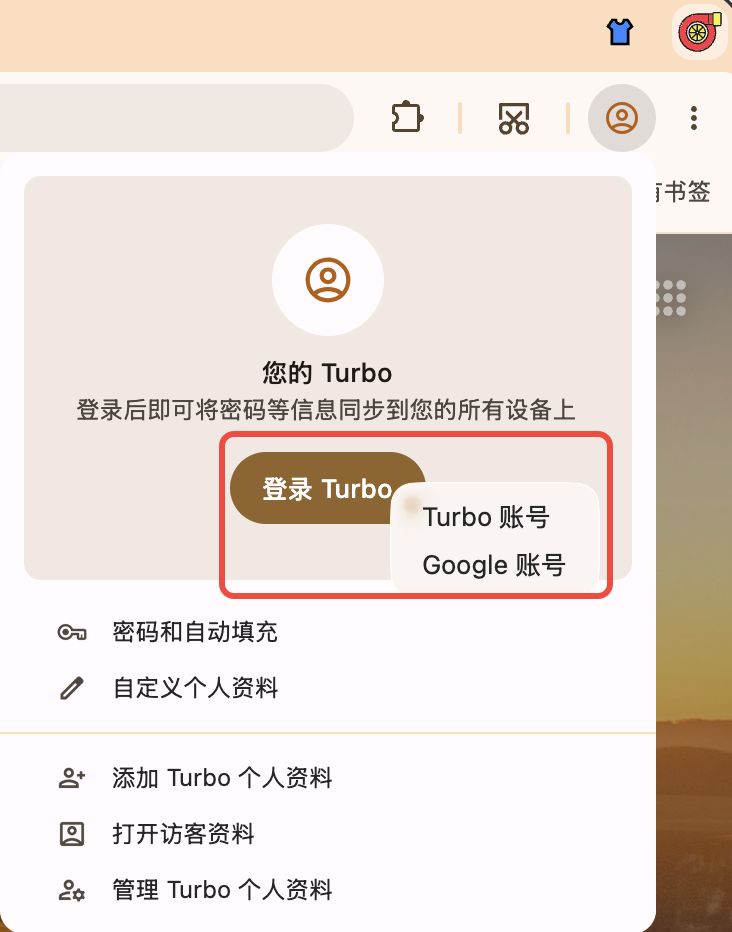
Dual sign-in: switch Turbo or Google account from the avatar menu, sign-in page, browsing data page, or history page
- Data sync — Turbo account uses incremental sync for bookmarks, passwords (including Passkeys), browser settings, extensions, and NTP My shortcuts (does not sync browsing history; bookmarks and passwords can be toggled separately; password sync is off by default on new installs; advanced settings support manual upload / download overwrite to fix dirty data); Google account uses Google Sync and can also sync Turbo settings (see Sync settings for actual toggles)
- How to use — After sign-in, open Settings → Sync and enable items as needed; first sync may take a few minutes
TIP
Both Turbo and Google accounts are supported; sync scope follows the options shown in Settings. Sync requires a network connection — if it fails, check sign-in status and retry. See Sync for details.
Migration & import
- From Chrome / Edge — Bookmarks, passwords, autofill, extensions (per release support)
- From Safari (macOS) — Bookmarks; the wizard guides you if Full Disk Access is needed
- How to use — Click Import bookmarks on the bookmarks bar, or open Settings → Profile → Import bookmarks and settings, choose the source browser and select items to import
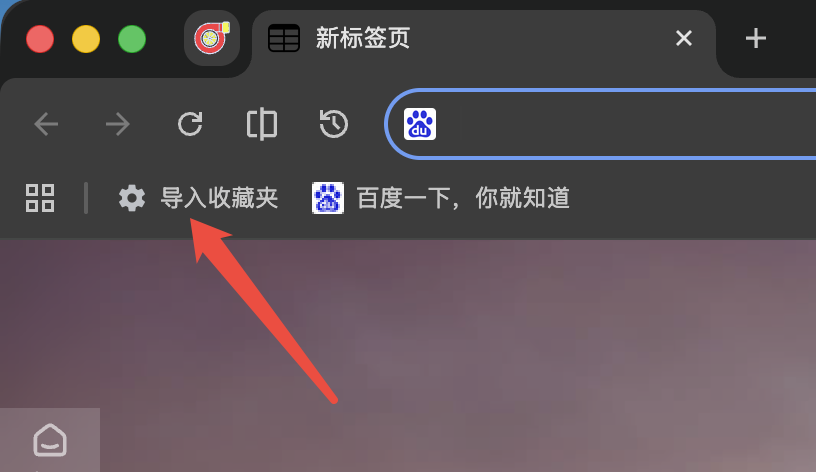
Import bookmarks button on the bookmarks bar
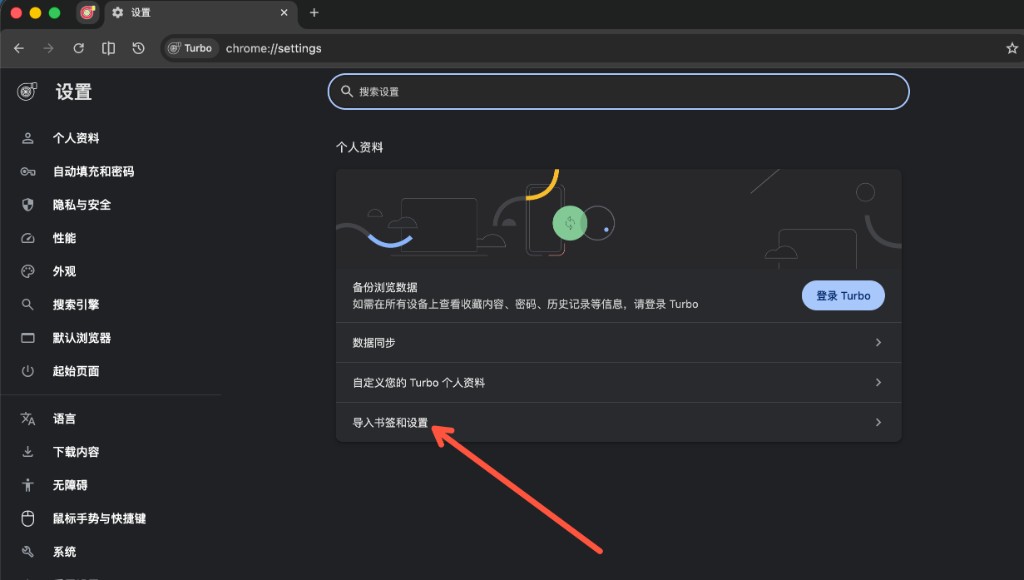
Settings → Profile → Import bookmarks and settings
See Data Import for details.
Stores & extensions
- Chrome & Edge stores — Open Menu → Extensions to visit the Chrome Web Store or Microsoft Edge Add-ons
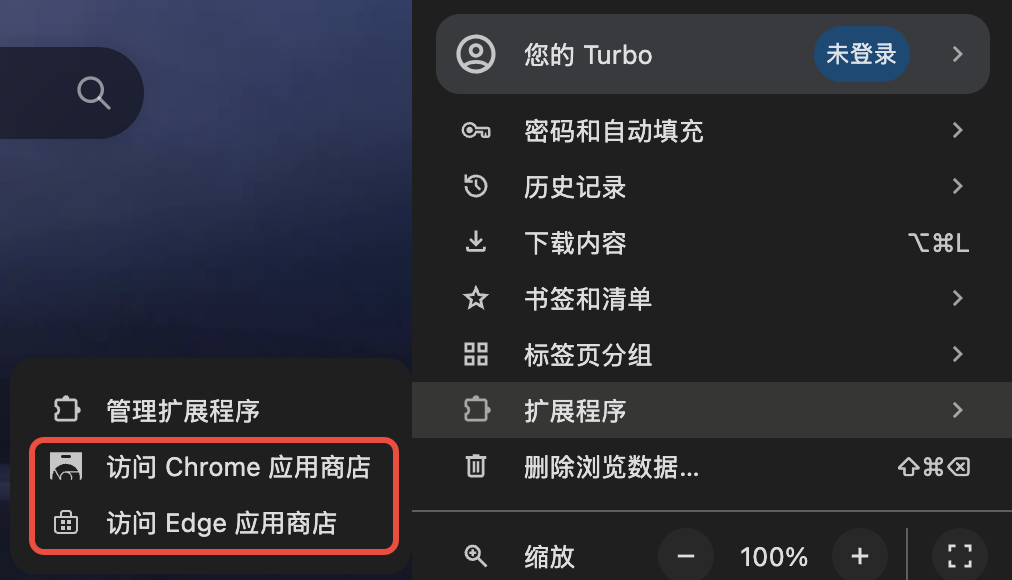
Menu → Extensions → Chrome Web Store / Edge Add-ons
- Extensions page — Store links are also available at the bottom of
chrome://extensions
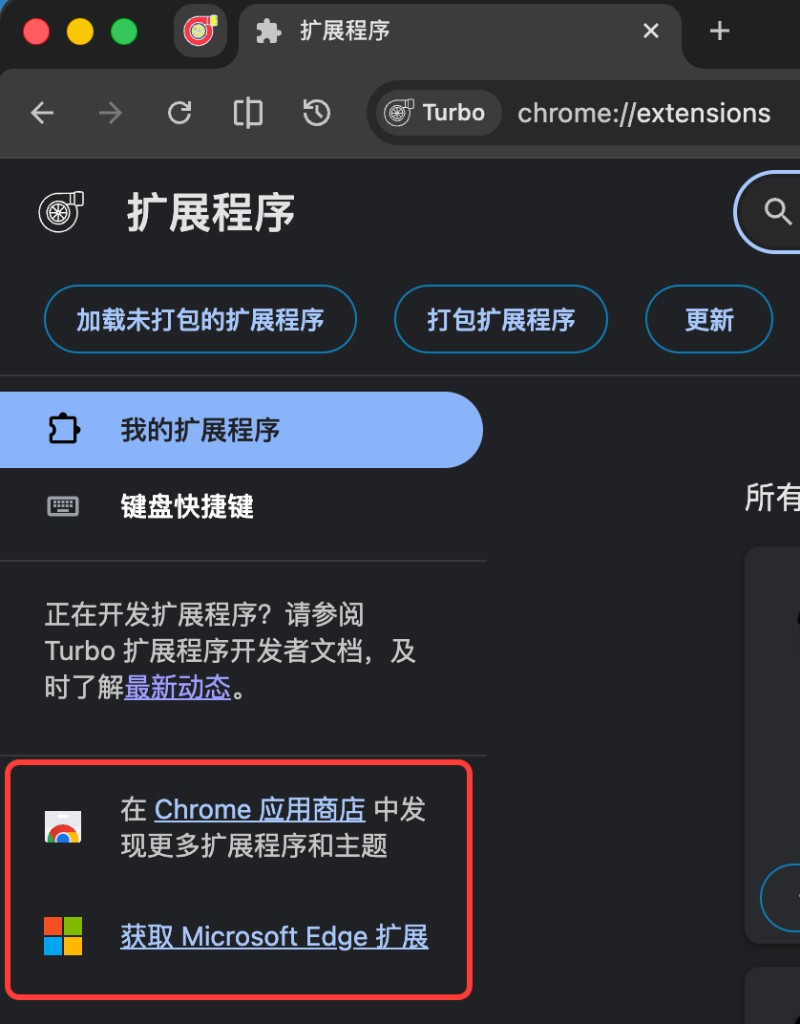
Chrome Web Store and Edge Add-ons links at the bottom of the Extensions page
- Edge theme store — Install more Edge themes from the title bar entry (works alongside one-click appearance)
- Crx搜搜 — Open Crx搜搜 from the
chrome://extensionssidebar for one-click.crxdownload and install from trusted sources - Disable from toolbar — Right-click a toolbar extension to disable; re-enable from Disabled extensions in the puzzle menu. See Extensions
- Pin on install — Toggle on
chrome://extensions(on by default) so newly installed extensions appear on the toolbar; pinned icons can still be reordered by dragging. See Extensions - Allow replacing the new tab page — For extensions that override the NTP, turn this off on the details page (on by default) to keep the extension without replacing the NTP. See Extensions
See Extensions, Extension Development, and Create a custom theme extension for details.
Recommended · AdGuard
Recommended add-ons from the website (not preinstalled). Download the .crx and follow the install prompt.

- Recommended · AdGuard — Optional extension package from the site; install when prompted
- How to install — Click the button below to download the extension, then follow the browser prompt to finish setup
Web translation
Built-in translate: Translate the whole page from the page context menu or the right side of the address bar. Settings → Translate can switch Microsoft Edge / Google (refresh the page before translating again). Show translation prompt is off by default and no longer pops automatically; you can still translate from the address-bar icon. With Show translation prompt off, auto-translate toast no longer appears either. Optional Let the translate service detect the source language (can improve proper nouns and mixed Chinese/English pages).
For bilingual reading, selection/hover translation, and video subtitles, install the recommended extension:

- Recommended · Immersive Translate — Free bilingual web translation that targets the main content area for a cleaner, less intrusive reading experience
- More capabilities — Hover and selection translation; PDF, EPUB, subtitles, and images; bilingual subtitles on YouTube, Netflix, Bilibili, and more; DeepL, OpenAI (ChatGPT), Gemini, and other engines
- How to install — Click the button below to download the extension, then follow the browser prompt to finish setup
Mouse gestures & boss key
- Boss key — Default
Ctrl + Qto hide/show the window; customizable in Settings; separate toggles for Mute while hidden and Restore to foreground (both on by default). Restoring a pinned window keeps it on top - Custom shortcuts — Settings → Mouse gestures (off by default) to remap common browsing actions (common items shown by default, less-used items under More shortcuts; including Focus address bar, Duplicate tab, Open current page in a small account tab, Empty cache and hard reload, Open Developer Tools, and Show bookmark menu (default Alt+B)). See Shortcuts → Custom shortcuts
- Mouse gestures — Hold right button and drag; path preview and custom actions; no trail until movement exceeds the dead zone (release still shows the menu); common defaults: ↑ scroll up, ↓ scroll down, ← back, → forward; assignable Hold left + click right, Copy, Paste (address-bar selection when the omnibox is focused), Focus address bar, Empty cache and hard reload, Open download panel, Open Developer Tools, 1st / last tab, forum previous/next page, and Maximize / Restore Window; three-direction gestures including reversals live under More gestures (no action by default), and you can open an incognito window; mute toggles only the current tab
- Super drag — Links and images can open or copy; text can search or copy (search engine can be chosen per direction; empty = follow the default); can map Find in page and Search this site. Link / text / image can each have their own up / down / left / right actions (background / foreground tab, small account tab, incognito window, open in split view, copy, etc.; None no longer falls back); dragging a linked image prefers the link action, hold Shift to prefer the image action; super drag avoids text fields; follow-cursor tip shows direction and action while dragging (can turn off); right-click during a drag to cancel
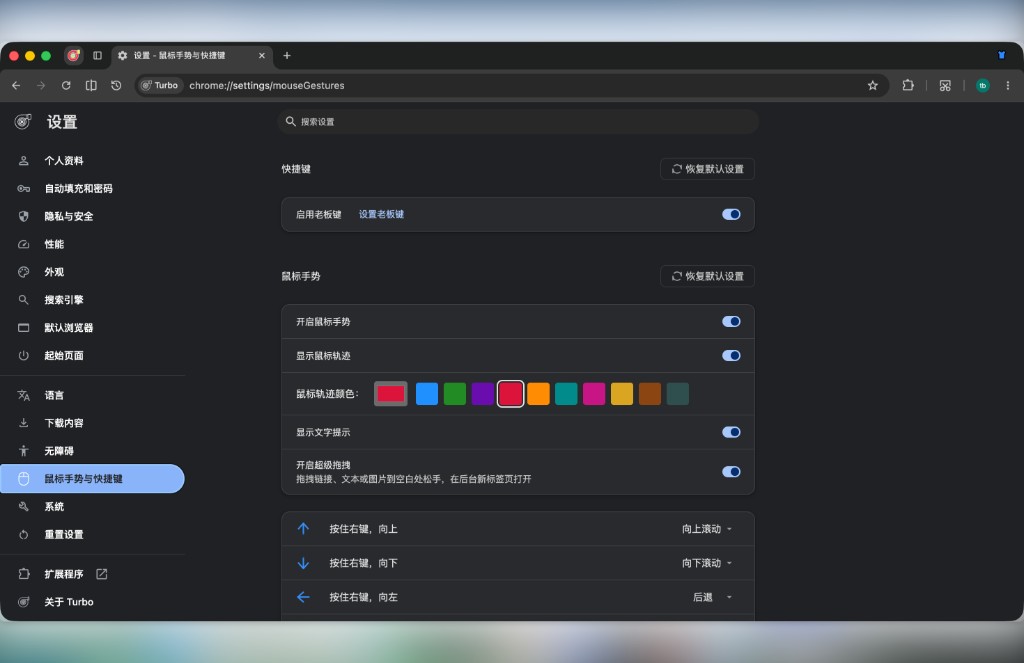
Mouse gestures & boss key: enable and customize the boss key, gesture trail, and action mappings in Settings
Full default mappings: Mouse gestures.
Screenshots
- Toolbar screenshot button — Left-click for full-screen capture; right-click for web page capture (save as image or PDF)
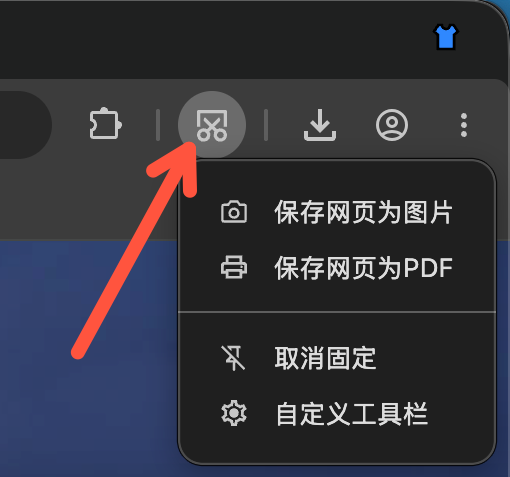
- Region capture —
Ctrl + Shift + X(Windows) /Cmd + Shift + X(macOS) to select any area on screen - Bundled tools — Windows:
Screenshot.exe; macOS:Screenshot.app
Region capture on macOS may require Screen Recording permission. See Screenshots and Shortcuts → Screenshots.
UI & productivity
- First run — Skip intro; system theme — Follow OS light/dark; Darken websites in dark mode — when the browser is dark, sites without a dark theme can be darkened automatically (Settings → Webpage extras, off by default). See Tips → Darken websites in dark mode
- Smooth scrolling — Settings → Appearance (Windows / Linux, on by default); restart required. See Practical tips
- One-click appearance — Title bar button to switch browser colors and look instantly, no trip to Settings; right-click to pin/unpin, also available in Customize Toolbar
- Toolbar — Switch standard / compact layout in Settings → Tabs and bookmarks or by right-clicking the tab strip; restore page, split screen, screenshot entry, customization; long-press or right-click the reload button for Normal / Hard / Empty-cache reload; pin History, Settings, and Mute from Customize Toolbar (one-click mute / unmute all tab audio in the current profile; while muted it also appears temporarily if unpinned); right-click the avatar button to unpin; right-click the app-menu (⋮) button to open Settings
- How Home opens — Settings → Tabs and bookmarks: Current / Foreground / Background (default: current tab); NTP / blank pages still use the current tab. See Tips → How Home opens
- Network proxy — Optional use of OS proxy settings; configure custom proxy when system proxy is off; custom startup command line
- Custom cache location — Settings → System to pick a cache folder; restart required; turning off restores the default. See Tips → Custom cache location
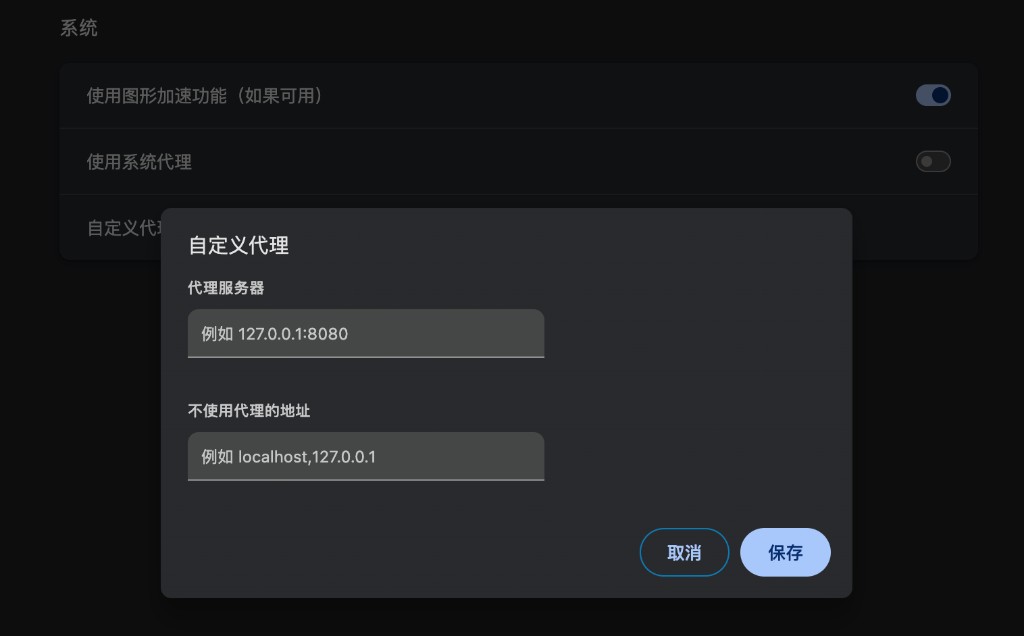
Network proxy: enable system proxy in Settings → System, or configure a custom proxy server and bypass list
- Parallel downloads — Toggle Enable parallel download acceleration in Settings → Downloads (on by default) for larger files. See Download enhancements
- Download tool — Detects 10 third-party download tools (Xunlei / IDM / Motrix / AB Download Manager / Free Download Manager / XDown / Rayburst / Ghost Downloader / FluxDown / Gopeed): hand web downloads to your usual downloader; no matching extension required. Confirm dialog can one-shot launch; built-in browser also available. See Download enhancements
- Alt + left-click quick-save images — Hold
Altand left-click a page image to save it; when enabled, Alt + right-click opens system Save As; toggle, choose the folder, and separately control list / toast / fly-in animation in Settings → Downloads. See Download enhancements - Webpage extras — Standalone Settings → Webpage extras page: auto-copy selection with optional toast, middle-click paste, video hover toolbar, eye-comfort mode, darken sites with appearance, show a tip when entering fullscreen (every fullscreen); optional local CSS / JS injection, including frames (off by default). See Mouse gestures → Webpage extras
- New tab — Chromium default NTP (bottom My shortcuts / Most visited tabs); Settings → On startup: default or custom URL; up to 30 custom shortcuts and 10 Most visited; main content is vertically centered; the customize side panel can hide the switcher tabs and icon backgrounds and toggle the Logo / search box and adjust shortcut size, count, and corner radius; search-box engine independent from the address bar (syncable; engine suggestions only); dark-mode search box follows the theme; typing on a blank area focuses search; empty Enter opens the engine home; extension details can disable Allow replacing the new tab page. Install an NTP extension from the store if you want one. See Tips → New tab page
Tabs & address bar
- Immersive mode — Auto-hide the tab strip and toolbar; move the pointer to the top of the window to reveal. Toggle in Settings, the app menu, the macOS View menu, or with
Ctrl/Cmd+F11; Settings → Appearance can adjust the top-edge hot zone and show/hide delays. See Immersive mode - Vertical tabs — Vertical tab layout supported out of the box; switch via the tab strip Tab layout toggle button, or in Settings → Tabs and bookmarks → Tab strip position; in vertical layout you can put the strip on the left or right; choose full-height or below-toolbar style, and optionally show a separate title bar (on by default on Windows); Show tab strip separator can be turned off (on by default), page corners keep only the top, and fullscreen clears page corners; improved collapse-state persistence. See Vertical tabs
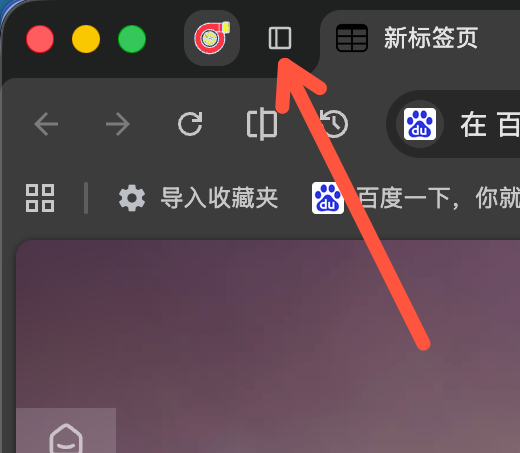
Vertical tabs: click the button on the left of the tab strip, or change tab position in Settings
- Tabs — Double-click / right-click close, hide close buttons, close tabs to the left (Close tabs above in vertical tabs), activate on hover, scroll to switch tabs, Tab search button position and list sort, new tab position (includes Default), close last tab, how entered URLs open, restore, open popups in tabs (off by default), paste and open, mute, close-window confirm, and more; most toggles under Settings → Tabs and bookmarks. See Tabs
- Bookmark bar — Bookmark menu (can open with Alt+B), adjustable bookmark max width (default 150), left-edge hover bookmark menu (configurable hot zone and delay; auto-disabled with left vertical tabs), five visibility modes (including Show on New Tab page, auto-hide elsewhere; auto-hide floats over the page when expanded, with a bottom separator), bookmarks bar display (icons/titles four-way, including Folder titles only), optional auto-expand folders on hover, multi-column menus (horizontal paging by default when they overflow the screen, with a no-animation option; nested submenus no longer cover the parent), confirm before opening many bookmarks, how bookmarks open (current / foreground / background), add page to this folder, replace with current page, and more; most toggles under Settings → Tabs and bookmarks. See Bookmark bar
- Small account tabs — Persistent identities in a normal window (cookies remember sign-in; closing a tab does not destroy the session). App menu Small account tabs to create / open / rename / delete identities; tab right-click can rename or Open in small account tab; the tab-strip right-click menu can create / switch small accounts; shortcut
Ctrl+M(Windows) /⌃⌘M(macOS); bookmarks and links can open in the matching account (links use a submenu). Darkened tabs with five high-contrast accent colors. Coexists with full Incognito windows (those still wipe on close). See Small account tabs - Video hover toolbar — Settings → Webpage extras (on by default); hovering a webpage video shows a toolbar at the top-right (opacity 10%–100%) for mini window, in-page fullscreen, and download (improved video download; Douyu / Huya / Douyin site fullscreen; Douyu / Huya mini-player supports danmaku; supported sites without a direct link can use VideoFk; YouTube fullscreen stays in-tab); exception sites supported; hides faster after leaving the video or toolbar; mini window remembers size/position and stays on top by default;
Alt+Pshares the pin toggle with the title bar. Include the page URL when reporting compatibility issues. See Tips → Video hover toolbar - Clear selected data on exit — In Clear browsing data, enable Automatically delete selected data when you close the browser to clear the checked local types on quit (off by default; synced items may return from your account). See Tips → Clear selected data on exit
- Address bar — Hover icons on the right of the address bar: Copy link (left-click = URL, right-click = title + URL), Scan QR code to share the current page (copy or download the QR image); copy / QR icons appear after a short hover delay; pin Find into the address bar; Settings → Appearance can toggle the full URL, Install app, bookmark star, Ask, and AI Mode (off by default), and set Focus border (Standard / Thin / None, Standard by default); with a custom theme can turn on make the address bar the same color as the toolbar (off by default); right-click the search-engine / site-info icons to open the matching settings; switch default search engine when the address bar is empty or being edited; Search with other search engines for selected text (submenu includes Search engine settings); Settings → Search engine can toggle Search engine suggestions, Search history, Browsing history, and Bookmark suggestions separately
- Fine zoom — 5% steps in Settings → Appearance; the page-zoom dropdown sets the default for all pages; hold Shift for 5% steps either way. See Tips → Fine zoom
- macOS reload —
F5reload andCtrl/⇧+F5hard reload. See Shortcuts
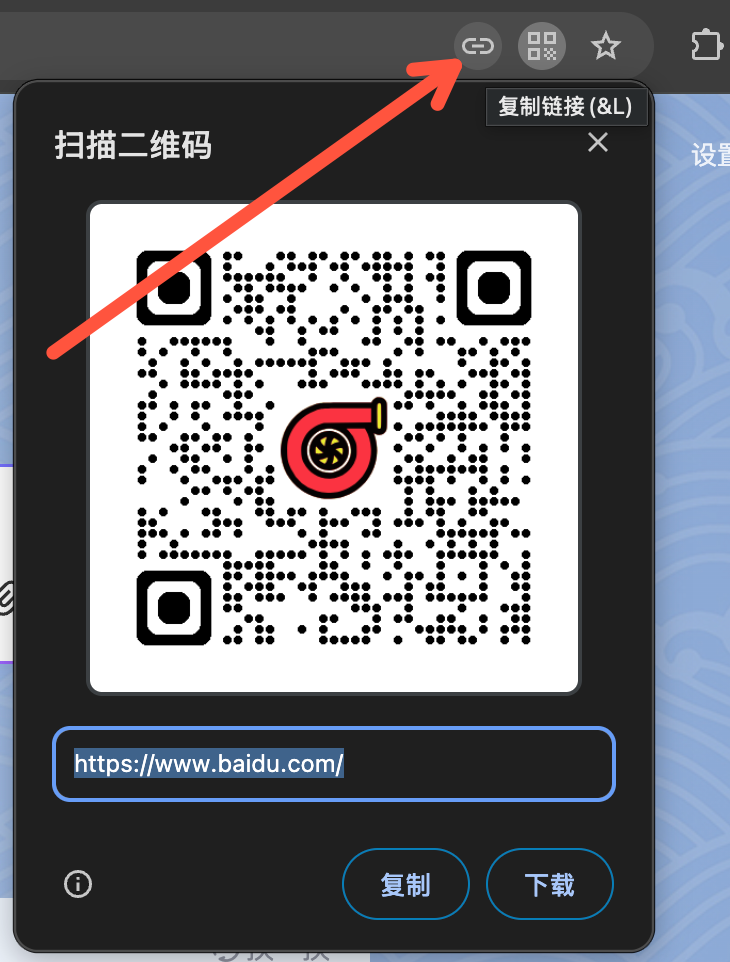
Address bar: hover the copy-link or QR code icon to quickly copy the link or share the page
Updates & install
- Updates — Check in Settings; background check (~24h); macOS in-place replace after download
- Install — Turbo-first-run flow; Settings → Default browser can Create shortcut, Pin to taskbar (Windows), and Set as PDF app
Cross-platform
- Windows / macOS
- Encrypted video — Widevine CDM is fetched on demand at first encrypted playback, so Widevine-protected streams can work (whether a given site plays depends on that site’s policy). Windows also supports AC3/EAC3 audio (system Dolby decoding)
Further reading
- Quick Start — recommended post-install setup
- Shortcuts — default shortcuts; Mouse gestures — gestures and super drag
- Help Center — FAQ and troubleshooting
- Learn more: Data Import, Sync, Built-in productivity, Tabs, Bookmark bar, Mouse gestures, Screenshots, Vertical tabs, Small account tabs, Immersive mode, Extensions